
PC Bottleneck Types, Signs & How to Fix Them
PC Bottleneck Types can affect more than just your CPU or GPU. RAM, storage, power supply, and cooling can all limit your system’s performance too. Here’s a breakdown of the most common types, what causes them, and how to fix them.
Common Signs of a PC Bottleneck
Not every slowdown is a bottleneck, but these patterns usually give it away:
- Light tasks run smoothly, but demanding games or heavy workloads slow things down fast.
- Dropping your graphics settings barely moves the FPS needle, a sign the GPU isn’t the real problem.
- Your 1% low FPS (your worst-case frame dips) falls way below your average, and that gap is what you feel as stuttering.
- One component sits maxed out at high usage while the other barely breaks a sweat.
How to confirm it
Fire up Task Manager or MSI Afterburner and watch both CPU and GPU usage under load. One pinned near 100% while the other trails behind? That’s your bottleneck.
Common PC Bottleneck Types
Not every slowdown is caused by a weak GPU or an old CPU. Sometimes the problem is your RAM, storage, or even your power supply. Here is a breakdown of the most common PC bottleneck types: what causes them, how to spot them, and how to fix them.
CPU Bottleneck
GPU Bottleneck
RAM Bottleneck
Storage Bottleneck
Power/Wattage Bottleneck
Thermal Bottleneck
CPU Bottleneck
CPU Bottleneck: happens when your processor can’t prepare data fast enough to keep your GPU fed, causing stutters and inconsistent frame rates even when average FPS looks fine. Read the full CPU Bottleneck guide.
GPU Bottleneck
GPU Bottleneck: happens when your graphics card is the limiting factor. This is often completely normal, especially at 1440p and 4K, where the GPU is expected to carry most of the load. Read the full GPU Bottleneck guide.
RAM Bottleneck
What is it?
A RAM bottleneck happens when your system doesn’t have enough memory capacity or speed to keep up with what you’re running. It shows up as stutters, slower multitasking, laggy app switching, and a system that just feels less responsive, even when your CPU and GPU usage look completely normal.
Speed isn’t the only thing that matters here. Latency plays a big role too. Higher latency means your RAM takes longer to respond to the CPU, which can cause frame time spikes even when your average FPS looks fine on paper.
Common signs
Watch for high memory usage, frequent stuttering, slow application switching, and increased disk activity from memory swapping. If your system feels sluggish despite having a powerful CPU and GPU, RAM is worth checking.
Causes and solutions
RAM bottlenecks usually come down to either not having enough memory or having memory that isn’t configured properly. Here’s a breakdown of the most common causes:
| Cause | Why It Creates a Bottleneck | Recommended solution |
|---|---|---|
| Low RAM Capacity | The system runs out of memory for active tasks and starts using slower storage as virtual memory | Upgrade to at least 16GB for gaming, or 32GB for multitasking and content creation |
| Single-Channel Memory | Limited bandwidth slows data transfer between RAM and CPU | Install RAM in a dual-channel configuration for better bandwidth |
| Slow RAM Speed | Lower frequencies increase latency and slow data access | Use faster RAM, ideally 3200MHz or higher, if your motherboard and CPU support it |
| XMP/DOCP Disabled | RAM runs at default speeds instead of its rated performance | Enable XMP (Intel) or DOCP/EXPO (AMD) in your BIOS |
| Background Apps | Unnecessary programs eat into the RAM your active tasks and games need | Close unused apps and disable unnecessary startup programs |
Storage Bottleneck
What is it?
A storage bottleneck happens when your storage device can’t feed data to the CPU and RAM fast enough. It shows up as slower boot times, longer loading screens, delayed file transfers, and a system that feels less responsive overall, especially if you’re still running a traditional HDD.
Common signs
Slow loading times, delayed file transfers, and general sluggishness are the usual giveaways. Switching from an HDD to an NVMe SSD can cut game load times dramatically, sometimes by more than half.
Causes and solutions
Storage bottlenecks usually trace back to slow drives, low free space, outdated configurations, or too much background disk activity. Here’s a breakdown of the most common causes:
| Cause | Why It Creates a Bottleneck | Recommended solution |
|---|---|---|
| Old or slow HDD | Limited read/write speeds increase boot times, app loading, and file transfer delays | Upgrade to a faster SSD, ideally NVMe, for a real performance jump |
| Low available storage | Insufficient free space prevents the OS and apps from caching data | Free up storage space or add an extra drive |
| Fragmented files on HDD | Scattered files increase data access times and reduce performance | Defragment the HDD using built-in OS tools |
| Outdated storage drivers | Older drivers can hurt compatibility, stability, and performance | Update storage drivers through your motherboard manufacturer or hardware vendor |
| Incorrect BIOS storage mode | IDE mode instead of AHCI limits SSD performance and transfer speeds | Switch the storage mode from IDE to AHCI in your BIOS |
| Excessive background disk usage | Updates, antivirus scans, and downloads compete for storage resources | Close or pause unnecessary background apps and tasks |
| Slow external storage | External drives and memory cards are usually slower than internal ones | Use faster external storage like USB 3.2, NVMe, or Thunderbolt |
Power/Wattage Bottleneck
What is it?
A power bottleneck happens when your PSU can’t deliver enough stable power to your components. This keeps your CPU, GPU, and other hardware from hitting full performance and drags down overall system efficiency.
Common signs
Watch for system instability, warning messages, sudden performance drops, and trouble maintaining reliable operation during intensive workloads. These usually point to a PSU that’s struggling to keep up.
Power/Wattage Bottleneck Causes and Solutions
Power bottlenecks typically come from an underpowered PSU, high power demands, or an aging power supply. As a rough guide, a mid-range build with a card like the RTX 4070 typically needs a 650 to 750W PSU, while high-end builds with flagship GPUs can push past 1000W. Here’s a breakdown of the most common causes:
| Cause | Why It Creates a Bottleneck | Recommended solution |
|---|---|---|
| Low PSU wattage | The power supply can’t provide enough power for all components to run at full potential | Use a PSU calculator to estimate your system’s power needs, then upgrade to an appropriately rated unit |
| High-end GPU/CPU combination | Combined power demand from high-performance components may exceed the PSU’s capacity | Choose a higher-wattage PSU from a reputable manufacturer that meets your system’s requirements |
| Aging or degraded PSU | Older power supplies lose efficiency over time and can deliver unstable power | Replace with a newer, high-efficiency unit and ensure proper cooling and airflow around it |
| Loose power connectors | Unstable power delivery to components | Make sure all PCIe and CPU power connectors are firmly seated |
Thermal Bottleneck
What is it?
A thermal bottleneck happens when your CPU or GPU gets too hot and automatically lowers its clock speed to avoid damage, a process known as thermal throttling. Unlike a power bottleneck, this isn’t about insufficient power. It’s about too much heat building up inside your system.
Common signs
- Sudden FPS drops during gaming sessions
- CPU or GPU temperatures above 90°C
- Fans running at maximum speed constantly
- Performance improves once the system cools down
Thermal Bottleneck Causes and Solutions
Thermal bottlenecks usually come down to airflow, cooling hardware, or maintenance issues. Here’s a breakdown of the most common causes:
| Causes | Why It Creates Bottleneck | Recommended Solution |
|---|---|---|
| Poor airflow | Heat builds up inside the case | Improve case airflow with intake and exhaust fans |
| Dried thermal paste | Poor heat transfer between CPU and cooler | Replace thermal paste every 2-3 years |
| Dust buildup | Blocks airflow and traps heat | Clean PC regularly with compressed air |
| Weak CPU/GPU cooler | Cannot dissipate heat fast enough | Upgrade to a better air or liquid cooler |
PC Bottleneck Comparison Table
Different types of bottlenecks affect system performance in different ways. The table below compares the most common bottleneck types, their symptoms and their impact on overall performance.
| Type | What It Means | Signs of Bottleneck | Impact |
|---|---|---|---|
| CPU Bottleneck | The processor can’t keep up with the graphics card or workload demands | High CPU usage (90-100%) while GPU utilization stays low | Lower FPS, stuttering and reduced overall performance |
| GPU Bottleneck | The graphics card can’t render frames fast enough for the workload | GPU usage stays close to 100% during gaming or rendering | Reduced FPS, lower graphics performance and frame rate instability |
| RAM Bottleneck | Insufficient capacity or slow memory limits system performance | High memory usage, lag, stuttering and application freezes | Poor multitasking, slower application loading and reduced responsiveness |
| Storage Bottleneck | A slow storage device delays data access and transfers | Long boot times, slow file transfers and delayed loading screens | Slower system response and longer application load times |
| Power/Wattage Bottleneck | The PSU can’t provide enough stable power for system components | System instability, warning messages, random shutdowns and performance drops | Reduced system stability and lower performance under heavy workloads |
| Thermal Bottleneck | CPU/GPU overheats and automatically reduces clock speeds | Sudden FPS drops, high temperatures, fans at max speed | Performance drops to prevent hardware damage |
How to Fix a Bottleneck Without Upgrading Hardware
Not every bottleneck requires a hardware upgrade. In most cases, the problem isn’t your hardware. It’s how it’s being used. Optimizing system settings and cutting down unnecessary CPU, RAM, and storage usage can improve performance without spending a dime:
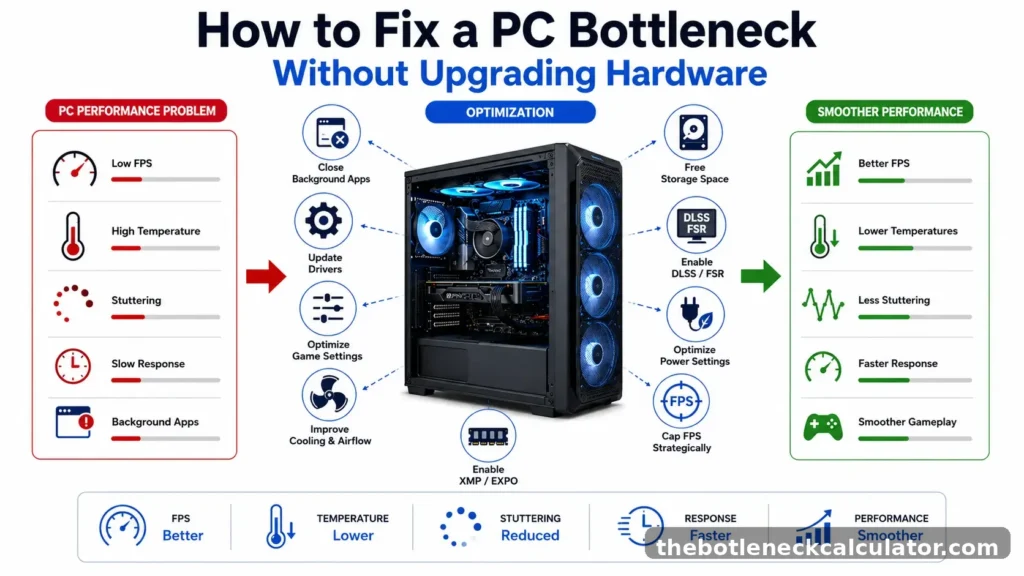
- Close unnecessary background apps and startup programs to free up CPU and RAM
- Update your CPU, GPU, chipset, and storage drivers regularly
- Optimize in-game settings: reduce shadows, reflections, view distance, and texture quality
- Lower resolution or disable frame rate limits if your GPU is struggling
- Ensure proper cooling and airflow to prevent thermal throttling
- Overclock your CPU if it’s supported. AMD Ryzen processors and Intel K-series CPUs allow overclocking. Monitor temperatures using Core Temp and stay below 80°C
- Enable DLSS (NVIDIA) or FSR (AMD) if your GPU supports it. These upscaling technologies shift workload from CPU to GPU, boosting FPS without losing visual quality
- Free up storage space and reduce background disk activity
- Enable XMP/EXPO/DOCP in BIOS for rated RAM speed
- Use the High Performance power plan for maximum CPU and GPU output
- Switch to DX12 or Vulkan if your game supports it. Unlike DX11, which hammers a single CPU core, these APIs spread the load across multiple cores for better performance
- Cap your frame rate strategically. If your CPU struggles at 144Hz or 240Hz, lock FPS at 60 or 90 for smoother, stutter-free gameplay
When upgrading, don’t just buy the most expensive part. Look for the component that best balances your current setup. Enabling XMP alone can push system efficiency from the high-70s into the 90s, a setting most people never touch.
Conclusion
A bottleneck doesn’t always come from your CPU or GPU. RAM, storage, power supply, and cooling can just as easily hold your system back.
Identify which component is actually struggling and fix that one first. Upgrading the wrong part wastes money and won’t help.
Not sure where your system stands? Run your CPU, GPU, and RAM through our free Bottleneck Calculator to find out.