
Can a GPU Bottleneck a CPU? Yes, Here’s How the Reverse Bottleneck Works
Date Published:August 1, 2026
Last Updated:August 9, 2026
The overlay reads 97%. You stare at it. Somewhere along the way you picked up the idea that bottlenecks are bad news so a GPU sitting at 97% has to mean something’s wrong. You open a browser tab and start typing “GPU bottleneck fix.”
Nothing is wrong. That number is the whole point.
Yes, a GPU can bottleneck a CPU, the term exists and the situation is real. But it describes the GPU working at full capacity while the CPU sits comfortably underneath it with room to spare. Nobody’s being starved, nothing’s being damaged, it’s the graphics card doing exactly the job you paid for.
This guide breaks down the misconceptions that make people panic over a normal reading, what it looks like across different hardware tiers, when it’s worth a second look and how to know for certain which side your own PC is on.
What Does It Mean to Be GPU-Limited?
Think of a relay race where one runner finishes their leg so quickly they end up waiting at the handoff point for their teammate to catch up. That waiting runner isn’t broken, they’re just faster than what comes next in the chain. That’s roughly what happens when a GPU “bottlenecks” a CPU, the graphics card becomes the slowest link and the processor, having already finished its part, sits with capacity to spare.
In practice, this looks like GPU usage sitting at 95-99% while the CPU comfortably stays well below its own limit. Frame delivery stays smooth. Nothing is being starved or damaged, the GPU is simply doing the heaviest lifting, which is exactly what it’s built for.
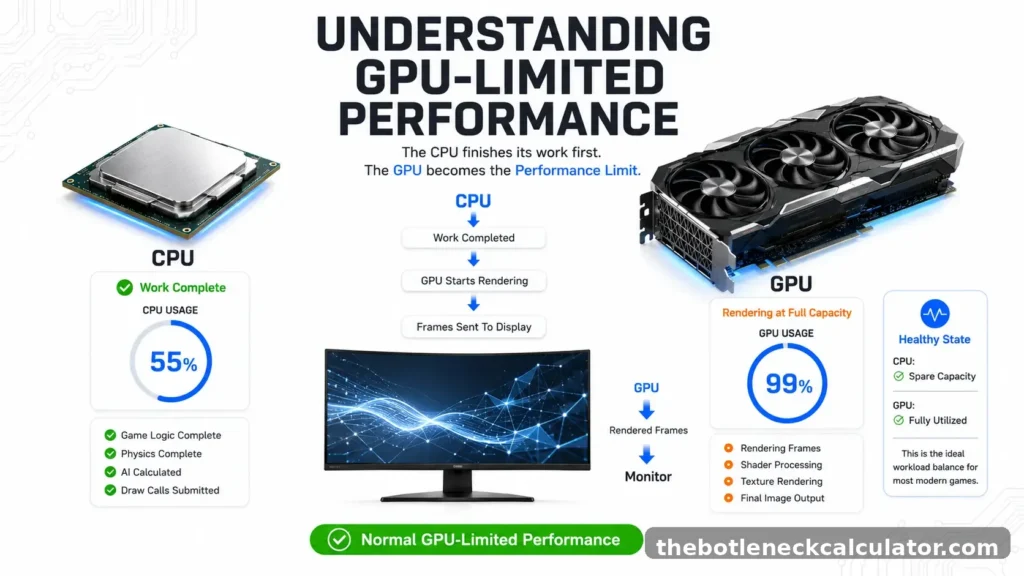
Here’s the part that catches people off guard: every frame starts with the CPU. It prepares geometry, issues draw calls and updates physics and game logic, then hands all of that off to the GPU to render. The GPU is the last stop in that chain, the one turning prepared data into an actual image on screen. Because rendering is the heaviest single step in that process, it makes sense that the GPU is usually the part working hardest, not the CPU.
Compare that to an actual CPU bottleneck, and the pattern flips entirely:
| Signal | GPU-Limited (Good) | CPU Bottleneck (The Real Problem) |
|---|---|---|
| GPU usage | 95-99% | Below 85%, often much lower |
| CPU usage | Comfortable, spare capacity | 95-100%, pinned |
| Frame delivery | Smooth, consistent | Stuttery, weak 1% lows |
| What it means | GPU doing its job properly | CPU can’t feed the GPU fast enough |
Compare that to an actual CPU bottleneck and the pattern flips entirely:One scope note worth being upfront about: this guide is about gaming workloads specifically. GPU compute tasks like video encoding or 3D rendering behave differently and have a different relationship with the CPU entirely, that’s a separate conversation.
Myths People Believe About This (And Why They’re Wrong)
Most of the confusion here comes down to four ideas that keep circulating on forums, each sounding reasonable enough that nobody stops to question them.
Myth: A bottleneck is always bad
This comes from the word itself. In fluid dynamics, where the term originated, a bottleneck is always a restriction, always a bad thing. PC hardware doesn’t work that way. A CPU bottleneck wastes GPU capacity and produces stutter. A GPU bottleneck is the graphics card doing exactly what it’s built for. Same word, opposite outcomes.
Myth: High GPU usage means the GPU is struggling
Usage isn’t a stress indicator, it’s a measure of how much work the GPU has been given. Sitting near 100% means it’s been handed plenty to do. Sitting near 60% usually means the CPU couldn’t produce work fast enough to keep it busy. The one real exception: if that high usage comes with a GPU running dangerously hot and losing clock speed, that’s a cooling problem layered on top, not evidence the bottleneck itself is bad.
Myth: A perfectly balanced CPU and GPU is the goal
This sounds sensible and isn’t really possible. One component always finishes its work first and waits on the other, the only real question is which one. A GPU that finishes last produces smooth, predictable frame times. A CPU that finishes last produces the opposite, since rendering time is fairly consistent while a struggling CPU’s draw call delays are not. “Balanced” was never really the target. GPU-limited was.
Myth: Lowering resolution or capping FPS fixes a GPU bottleneck
Not quite. Dropping resolution shifts more of the workload onto the CPU rather than solving anything on the GPU side, and capping your frame rate doesn’t change what either component is capable of, it just hides the number. Neither one addresses whether your hardware is mismatched in the first place.
“For a full side-by-side, see our CPU vs GPU bottleneck comparison.
Three Real Builds, Three Different Levels of GPU Limitation
Different price points, same underlying pattern, though the intensity of that pattern shifts as you move up the stack. Here’s what moderate, strong, and extreme GPU limitation actually look like.
Budget tier, moderate GPU limitation
Ryzen 5 7600 + RTX 4060, 1440p GPU usage sits around 95-97%, while the CPU comfortably idles in the 55-60% range. Even at this price point, the GPU is doing the heavy lifting, and frame delivery stays smooth. This isn’t a weak GPU problem, it’s the RTX 4060 simply being the natural ceiling for this pairing at this resolution.
Mid-range tier, strong GPU limitation
Core i5-13600K + RTX 4070 Super, 4K Push the resolution to 4K, and the GPU utilization climbs to near 99%, while the CPU drops even further into idle territory, often below 55%. The gap between the two components widens here, resolution alone is now doing most of the work of making this system GPU-limited, regardless of how capable the CPU is.
High-end tier, extreme GPU limitation
Ryzen 7 7800X3D + RTX 4080, 4K with ray tracing This is where the pattern hits its ceiling. Even a powerful CPU like the 7800X3D sits with more than half its capacity unused, because ray tracing at 4K is demanding enough to push almost any current GPU to its limit.
A top-tier CPU essentially waiting around while the GPU does everything it possibly can, that’s about as extreme as GPU limitation gets.
The consistent thread across all three: as you move from budget to high-end, the gap between GPU and CPU utilization actually widens, not narrows. More expensive hardware doesn’t reduce GPU limitation, it just means the GPU is working even harder relative to a CPU that has even more room to spare.
The Resolution Effect: Why 4K Changes the Entire Equation
Resolution is the fastest way to push any system into GPU-limited territory, and 4K specifically does something the resolutions below it don’t: it makes GPU-limited almost unavoidable. The reason comes down to simple math. A 4K frame contains roughly 8.3 million pixels.
A 1080p frame contains about 2 million. That’s four times the pixel work per frame, which means the GPU needs meaningfully longer to render each one, long enough that a CPU almost never runs out of prepared work waiting on it
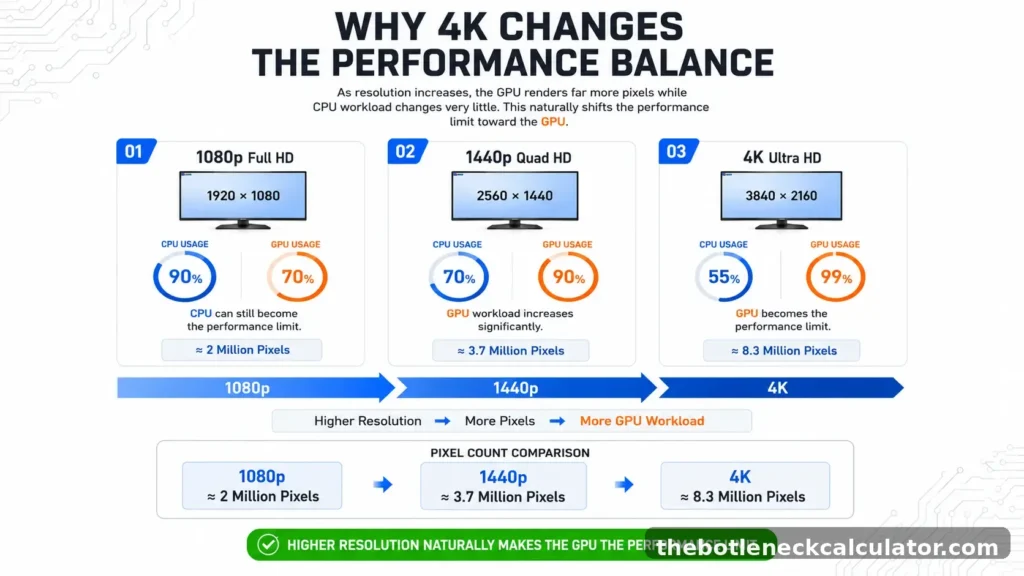
1440p helps too, but it’s a partial fix, not a guarantee.
CPU-heavy game engines, Warhammer 40K: Darktide and some older Unreal Engine 4 titles among them, can still expose a real CPU bottleneck at 1440p in systems that otherwise run cleanly.
4K closes that gap almost entirely. The pixel workload at that resolution is large enough to absorb even a weak CPU’s shortcomings, which is exactly why 4K changes the equation in a way lower resolutions can’t quite match.
If you’re chasing GPU-limited status without buying anything new, a few things help, in rough order of impact:
- Move up in resolution Even short of 4K, going from 1080p to 1440p often eases a CPU bottleneck meaningfully.
- Enable XMP or EXPO in BIOS Running RAM at its rated speed rather than default gives the CPU a real, free performance boost.
- Enable Resizable BAR Lets the CPU access the GPU’s VRAM more efficiently.
- Raise graphics settings Heavier per-frame GPU work buys the CPU more prep time, the same underlying principle as raising resolution.
None of this is a problem to fix. Smooth, predictable frame pacing, a graphics card working at the capacity you paid for, and a clear signal of exactly what to upgrade next, that’s what being GPU-limited at 4K gets you.
Does Upscaling (DLSS, FSR, XeSS) Change the Picture?
Yes, in more than one sense. Upscaling changes the literal image on your screen, and it changes your GPU-limited system’s performance, without ever fixing the bottleneck itself, it just gives you a faster way to live with it.
NVIDIA DLSS, AMD FSR, and Intel XeSS all render internally at a lower resolution than your display, then use their own reconstruction algorithms to scale that image back up.
Less internal resolution means less shader work per frame, which means your GPU-limited system can push meaningfully more FPS at the same visual settings.
Frame generation, which sits on top of these upscalers, works differently and matters more than most people realize. Instead of rendering fewer pixels, it renders at full resolution and then inserts entirely new, AI-generated frames between the real ones.
The key detail: those generated frames never touch the CPU at all, no draw calls, no game logic, nothing. That’s why frame generation can raise your FPS counter dramatically without your CPU doing any additional work, it’s the one technology that sidesteps the CPU side of the pipeline entirely.
A quick breakdown of where each stands today
| Feature | DLSS 4.5 (NVIDIA) | FSR 4 (AMD) | XeSS 3.0 (Intel) |
|---|---|---|---|
| Hardware needed | RTX GPUs only | Works on any GPU | Any GPU, best on Intel Arc |
| Upscale quality | Excellent, often near-native | Good to very good | Good to very good |
| Frame generation | Yes, multi-frame on RTX 50-series | Yes, works across GPU brands | Limited or in-progress |
| Best for | NVIDIA RTX owners | Cross-platform, non-NVIDIA GPUs | Intel Arc owners primarily |
DLSS tends to hold a quality edge thanks to NVIDIA’s dedicated AI hardware, while FSR’s biggest strength is that it isn’t locked to one brand of GPU at all. Neither is flawless, though. Aggressive upscaling at lower internal resolutions can introduce ghosting behind fast-moving objects or slight shimmer on thin details like fences and wires, tradeoffs worth knowing about even if they’re usually minor.
The core idea to take away: none of these technologies are fighting your GPU bottleneck. They’re exploiting it, giving you a faster path through the exact ceiling that was already there.
The Rare Case Where This Actually Hurts You
Everything so far has argued that GPU-limited is fine, and it almost always is. There’s one situation where it stops being fine, and it has nothing to do with utilization numbers.
If you’re GPU-limited at a frame rate that’s too low to enjoy, roughly under 45 FPS in most action games, or under 30 in anything demanding precise input, the GPU itself is the real problem, not your CPU. The fix is a faster graphics card, or upscaling to raise that ceiling, not a CPU upgrade that won’t touch the actual bottleneck.
This is the detail that catches people off guard: the utilization reading alone doesn’t tell you if you have a problem. A GPU sitting at 99% while producing a smooth 80 FPS with strong 1% lows is a system working exactly as intended. A GPU sitting at 99% while producing 30 FPS is the same technical pattern with a completely different verdict, the ceiling itself is just too low. Same bottleneck type, opposite outcome. What matters is whether the resulting frame rate is one you’d want to play at, not the percentage on the overlay.
Beyond that one case, a few unrelated issues can occasionally ride along with a GPU-limited system and make things worse:
- VRAM overflow When a game needs more video memory than your card has, data starts spilling into slower system RAM, causing severe stutter that has nothing to do with raw GPU power.
- Thermal throttling Sustained near-100% usage on a poorly cooled card pushes temperatures high enough that the GPU cuts its own clock speed, which produces stutter that looks identical to a genuine hardware weakness.
- Input lag at uncapped frame rates Running a GPU flat-out without a frame cap or a latency-reduction feature enabled can add noticeable input delay, especially in fast, competitive games.
None of these mean GPU-limited is secretly bad. They’re separate problems that happen to share the same symptom, worth ruling out before assuming a stronger GPU is the only fix.
How This Should Shape Your Next Hardware Purchase
GPU-limited gives you the simplest upgrade path in PC building: the GPU is the ceiling, so a stronger GPU raises it directly. No CPU swap needed, no new motherboard, no RAM upgrade. The bottleneck is the graphics card, so fixing the graphics card fixes the bottleneck.
CPU-limited is where upgrade money gets wasted, and it’s less obvious than it sounds. Buy a faster GPU while your system is CPU-limited, and that new card barely moves the needle, you’ve just bought headroom your processor was never going to let you use.
| State | GPU Usage | CPU Usage | Right Upgrade |
|---|---|---|---|
| GPU-limited, running well | 95-99% | Comfortable | Upgrade GPU when ready |
| GPU-limited, FPS too low | 95-99% | Comfortable | Upgrade GPU, or upscale first |
| CPU-limited | Below 85% | 90-100% | Upgrade CPU, GPU spending is wasted here |
CPU-limited is where upgrade money gets wasted, and it’s less obvious than it sounds. Buy a faster GPU while your system is CPU-limited, and that new card barely moves the needle, you’ve just bought headroom your processor was never going to let you use.
The pattern shows up constantly: someone spends a few hundred dollars on a new graphics card while CPU-limited, and gains a handful of frames for their trouble. That same money spent on the actual bottleneck, the CPU, often would have unlocked far more performance from the GPU they already owned. Direction matters more than how much you spend.
One more thing to check before any GPU purchase: make sure your power supply has the wattage and cables the new card needs, and that your case has the physical clearance for it. It’s a small check that avoids a frustrating surprise after the card’s already ordered.
A 5-Minute Test to Know For Sure
This takes about five minutes and settles the question for good, no guesswork needed.
| Step | Action | What It Tells You |
|---|---|---|
| 1 | Install MSI Afterburner with RivaTuner Statistics Server, enable the GPU and CPU usage overlays | Sets up your readout |
| 2 | Load into your game and play an actual demanding scene, not a menu | Gives you real numbers under real load |
| 3 | Check GPU usage | 95%+ points toward GPU-limited |
| 4 | Check CPU usage at the same time | Comfortable and below 80% confirms GPU-limited; 90%+ instead points to CPU-limited |
| 5 | Both numbers look low? | Check your BIOS, XMP or Resizable BAR is likely disabled |
This takes about five minutes and settles the question for good, no guesswork needed.That last row catches something most people miss entirely. GPU sitting at 65%, CPU at 70%, neither one looks maxed out, so nothing seems obviously wrong, yet the system is still underperforming.
This traces back to RAM running at its default JEDEC speed instead of its rated XMP or EXPO profile, or Resizable BAR sitting disabled in the BIOS. Both ship off by default on a lot of boards, and together they can cost a meaningful chunk of performance for free once turned on.
If you want a quick second opinion without opening any monitoring software, there’s a simpler test: lower your resolution or graphics settings mid-session. If FPS jumps up, you were GPU-limited. If the number barely moves, your CPU is the one holding things back, no amount of lightening the GPU’s load changes what the processor can produce.
Common Mistakes When People Spot This Pattern
Seeing a GPU pinned at 99% for the first time tends to trigger the same handful of reactions, and most of them waste time or money.
Panic-upgrading the CPU
This is the big one. Someone sees their processor sitting comfortably at 55% and assumes it’s underperforming, so they upgrade it, only to find their FPS barely changes. The CPU wasn’t underperforming, it was doing exactly what it needed to and finishing early. A CPU upgrade here buys headroom nobody was going to use.
Assuming the fix is always a lower resolution
Dropping resolution does ease a GPU bottleneck, but it also throws away the visual quality that resolution was buying in the first place. If the FPS is already comfortable, this “fix” solves a problem that didn’t exist.
Blaming the GPU for stuttering that’s actually thermal or VRAM-related
A card running hot and throttling, or one running out of video memory on a texture-heavy game, produces symptoms that look identical to “the GPU just isn’t powerful enough.” People chase a GPU upgrade when better cooling or a texture-quality tweak would have solved it for free.
Never checking BIOS settings before spending money
XMP and Resizable BAR sitting disabled costs real performance, and it’s invisible unless someone actually looks. Plenty of upgrade decisions get made before anyone checks whether the current hardware was even running at its rated speed.
Treating every high utilization reading the same way
GPU at 99% producing 90 smooth FPS and GPU at 99% producing 25 FPS are not the same situation, even though the utilization number looks identical. Reacting to the percentage instead of the actual frame rate leads to the wrong conclusion in either direction.
The common thread: almost every mistake here comes from reacting to a single number instead of looking at the full picture, utilization, temperature, VRAM, BIOS settings, and the frame rate you’re actually getting.
Final Thoughts
A GPU bottleneck isn’t a flaw. In a well-tuned gaming PC, it’s usually the expected outcome, not something that needs fixing.
If your GPU sits at 95-99% while your CPU has room to spare, that’s your graphics card doing its job properly, not your processor holding anything back. The percentage on the overlay was never the real measure anyway. What actually matters is the experience: smooth gameplay, stable frame times, and a number you’re happy to play at. Chase that, not a perfectly even utilization split that was never realistic to begin with.
Want a quick answer without opening any monitoring software? Run your exact CPU and GPU through our Bottleneck Calculator to see exactly where your system stands.