
CPU Bottleneck vs GPU Bottleneck: Which One Is Actually Worse? (Signs, Causes and Fixes)
Date Published:July 23, 2026
Last Updated:August 26, 2026
Your monitor says 140 FPS. That should feel great. Instead, panning the camera feels gritty, busy scenes lurch for a split second and nothing you change fixes it. The number stays high. The stutter doesn’t.
Now picture a second PC sitting at a plain 75 FPS, no flashy number at all but every frame lands exactly when it should. Nothing lurches. It just plays. Both machines have a bottleneck. They don’t feel anything alike.
That’s CPU bottleneck vs GPU bottleneck: Not two versions of the same problem, closer to opposites. One quietly caps your performance and gets out of the way. The other wrecks how the game feels, even when the FPS counter is lying to you about it.
This guide covers what each one actually feels like, how to tell which one you have, how resolution changes the answer and which one is truly worse.
CPU Bottleneck vs GPU Bottleneck: Quick Answer
In most gaming PCs a GPU bottleneck is the better situation to have. When your graphics card runs near full usage your system is using that hardware effectively and it’s fixable later with a settings tweak or an eventual upgrade.
A CPU bottleneck is usually more frustrating. It creates inconsistent frame times and stuttering even when your average FPS looks high. The right answer depends on your resolution, games and hardware but if you had to pick a slight GPU bottleneck is the healthier balance. The rest of this guide walks through why.
Quick Comparison: CPU Bottleneck vs GPU Bottleneck
Use this as a fast filter before diving into the details below.
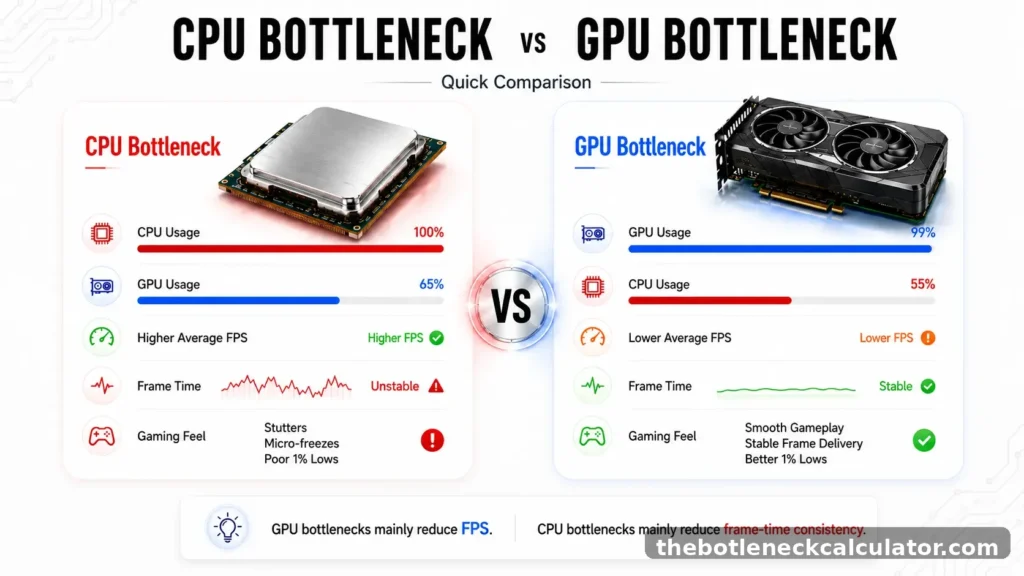
| Checkpoint | CPU Bottleneck | GPU Bottleneck |
|---|---|---|
| What’s actually limiting you | Frame prep, game logic, background tasks | Rendering, resolution, graphics effects, VRAM |
| GPU usage | Often below 90% even while FPS is low | Usually 95-100% |
| CPU usage | One core or the whole CPU pinned high | Usually has spare capacity |
| How it feels | Stutters, uneven frame time, weak 1% lows | Lower FPS, but smooth and predictable |
| Lower graphics settings | Barely moves FPS | FPS jumps noticeably |
| Raise resolution | FPS barely drops | FPS drops clearly |
| Common trigger | 1080p, high refresh rate, open-world or simulation games | 1440p, 4K, ray tracing, ultra textures |
If your GPU isn’t fully loaded but your FPS is still low, look at your CPU. If your GPU is maxed out and FPS improves the moment you lower resolution or settings that’s your GPU. And if temperatures are climbing or clock speeds are dropping, you might not be looking at a bottleneck at all, you’re looking at thermal throttling wearing a bottleneck’s clothes.
The same PC can flip between the two depending on what you’re playing too. Esports and strategy titles stress the CPU through constant frame-time demands, while AAA games with ray tracing and heavy textures usually shift the load onto the GPU instead. There’s no single answer for “your” system only an answer for the specific game and settings you’re running right now. Let’s break down what’s actually happening on each side of that split.
What Each One Actually Means
Understanding CPU Bottleneck vs GPU Bottleneck starts with knowing how each component limits performance in different situations.For a broader look at the different types of PC bottlenecks, see our complete guide.
A CPU bottleneck happens when your processor can’t prepare frames, physics and game logic fast enough to keep your GPU fed so the graphics card sits with capacity it never gets to use. We’ve covered this one in full depth, causes, signs and fixes in our dedicated CPU bottleneck guide, worth reading if this is the side you’re dealing with.
A GPU bottleneck works the other way around. The graphics card becomes the slowest part of the chain because it can’t render frames as fast as the CPU is preparing them. Your processor sits relaxed while the GPU stays pinned near its limit, working through resolution, textures, shadows, lighting and whatever effects the game demands.
A few things tend to cause this
- High resolution Jumping from 1080p to 4K doesn’t add work in a straight line, it multiplies the number of pixels the GPU has to render every single frame.
- Ultra settings Shadows, reflections, volumetric effects and heavy post-processing can drag FPS down without always giving visuals that look dramatically better.
- Ray tracing More complex lighting and reflection calculations mean significantly more work per frame even on strong GPUs.
- Low VRAM When a game needs more video memory than the card has, you don’t just lose FPS, you get texture pop-in and stutters as data gets shuffled through slower memory paths.
- Thermal throttling A GPU that runs too hot quietly drops its own clock speed to protect itself, which can look exactly like a weak graphics card even when it isn’t one.
- Old or weak GPU An outdated or entry-level graphics card simply can’t handle modern games or high-resolution workloads efficiently, no matter how strong the rest of the system is. This results in low FPS, stuttering and poor graphics performance regardless of settings.
- Outdated GPU drivers Graphics drivers get regular updates that improve performance, stability and compatibility with newer games. Running old drivers can quietly cost you FPS and cause crashes or glitches that have nothing to do with your actual hardware.
An important nuance here: A GPU bottleneck isn’t automatically a problem. Seeing your GPU sitting near 95-99% usage during a demanding game is usually a sign it’s being used efficiently not that something’s wrong. It only becomes worth worrying about if it comes with unstable frame times, overheating or performance that’s genuinely below your target. Whether that’s true for your system comes down to how it feels to play, which is where things get interesting.
What a CPU Bottleneck Feels Like
A CPU bottleneck feels like a road with speed bumps you can’t see coming. Your average might read 142 FPS, right up until something CPU-heavy happens:
A crowd of enemies spawns the camera sweeps across a busy area a fight fills the screen with effects. The processor can’t queue work fast enough, the GPU briefly idles and the frame delivery skips. The average barely changes. The experience absolutely does.
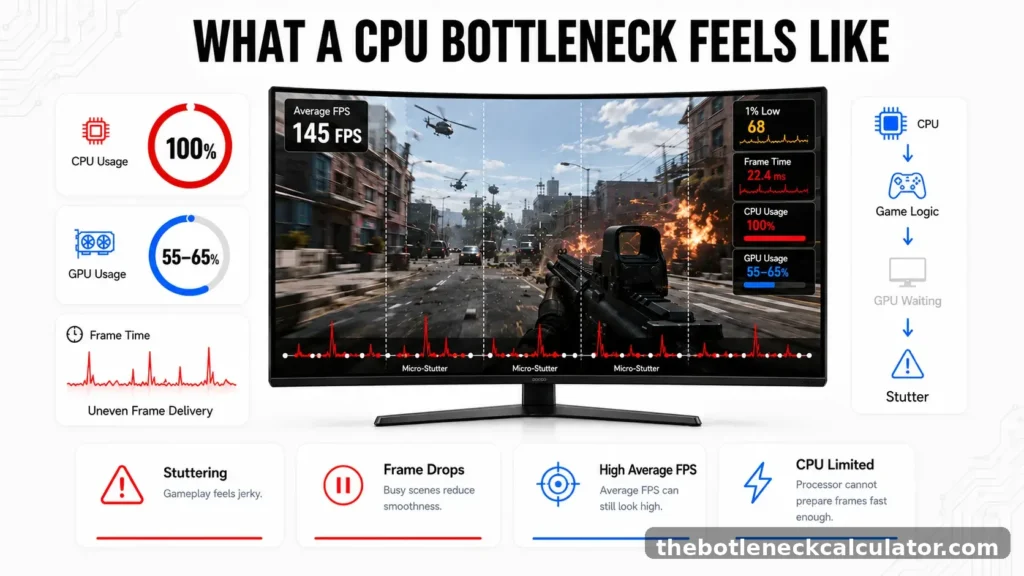
This is exactly why lowering graphics settings often does nothing here. Drag textures and shadows all the way down and the frame rate won’t budge because the GPU was never the problem. The processor simply can’t feed it fast enough, no matter how little you ask the graphics card to render.
A few concrete signs it’s happening
- Sudden freezes, usually right when you enter a crowded area or something explodes on screen
- Settings changes doing nothing, dropping from Ultra to Low and seeing the same FPS
- Background apps making it worse, a browser tab or Discord opening and your game immediately stutters
- The games it hits hardest: competitive shooters chasing high refresh rates (CS2, Valorant, Fortnite), tactical games like Escape from Tarkov, and simulation-heavy titles like Microsoft Flight Simulator
What most explanations miss is that this stutter isn’t random. It hits exactly when the game is asking the most of your processor, which is usually also when you’re paying the closest attention. In a competitive shooter that’s brutal timing.
The number on your FPS counter can look completely fine while the experience feels much worse. Compare that to the other side of this and the difference is night and day.
What a GPU Bottleneck Feels Like
A GPU bottleneck feels like a consistent speed limit. You’re at 78 FPS everywhere, quiet scenes and busy ones alike and the frame counter barely moves. It’s predictable. You know exactly what the game feels like and it feels like that reliably.
That’s the core difference from a CPU bottleneck
There’s no ceiling with holes in it here, just a lower ceiling you’re comfortably living under. The GPU is fully loaded, usually sitting near 99% usage and that’s normal behavior not a sign something’s wrong. It’s your graphics card doing exactly what it’s supposed to do at the settings you’ve chosen.
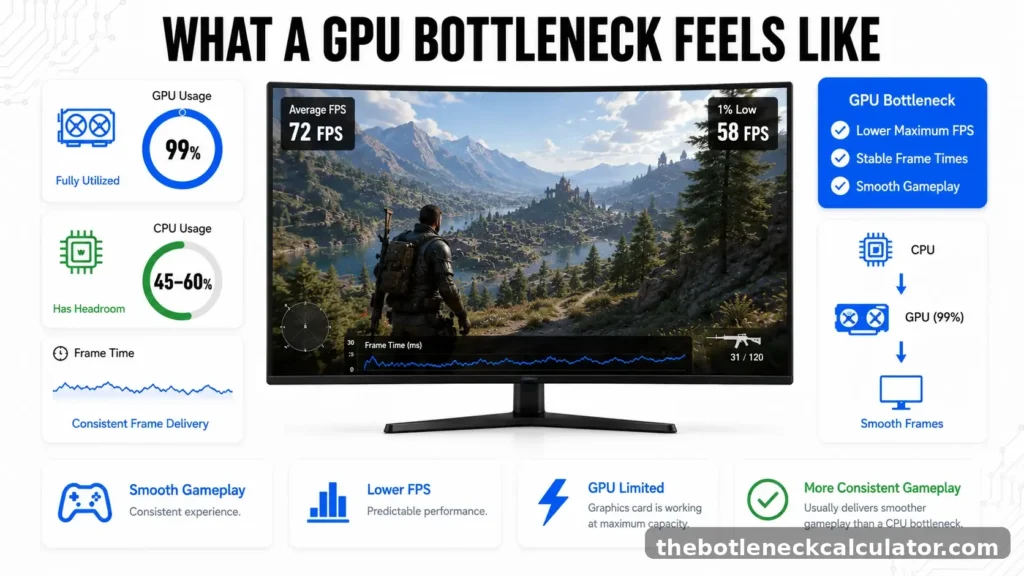
Lower FPS, sure. But it tends to feel smoother overall without the erratic stutter that defines a CPU bottleneck. Frame delivery stays consistent even when the number on screen is lower than you’d like.
That consistency is exactly why a lot of experienced PC builders intentionally aim for a slight GPU bottleneck rather than a CPU one. Given the choice between “predictable but capped” and “high average with random skips,” predictable usually wins. There’s actual data behind that preference, not just a feeling.
The Frame Time Evidence: Why 1% Lows Tell the Real Story
Average FPS is the number everyone quotes and it’s also the number that lies to you most often.
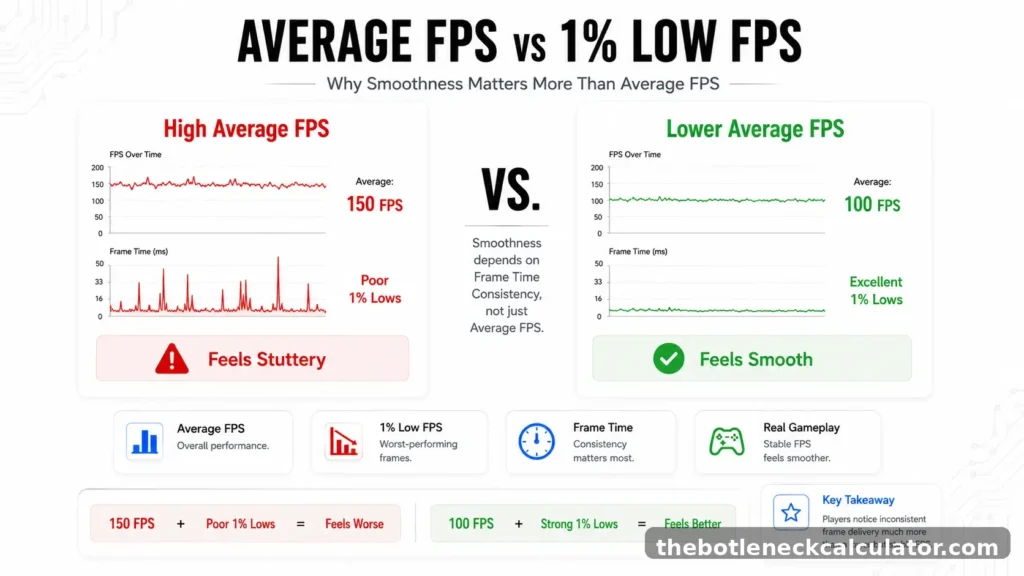
The metric that actually matters is your 1% low, the average of the slowest 1% of frames in a session. It’s what catches the stutters and micro-freezes that a flat average completely hides. A game can average 150 FPS and still feel rough if those worst-case frames are dropping to a third of that number.The biggest difference in CPU Bottleneck vs GPU Bottleneck is not average FPS, but frame-time consistency and 1% lows.
This is where CPU and GPU bottlenecks clearly diverge. A CPU-bound system often sees 1% lows fall to 40-55% of the average a big gap between what the counter claims and what you actually feel. A GPU-bound system holds much closer, often 80% or higher, meaning the worst frames aren’t far off from the average at all.
| Bottleneck Type | Average FPS Says | 1% Lows Actually Show |
|---|---|---|
| CPU bottleneck | Can look high, even great | 40-55% of average, visible stutter |
| GPU bottleneck | Lower, capped | 80-90% of average, feels smooth |
Put plainly
A CPU-bottlenecked system can post a higher average FPS than a GPU-bottlenecked one and still feel worse to actually play because the number that determines “smooth” isn’t the average it’s the consistency underneath it.
It also explains a common, frustrating scenario. Someone upgrades their graphics card expecting a big jump, sees underwhelming results and assumes the new GPU wasn’t worth it. Often the real issue was a CPU limitation that existed the whole time, just hidden behind the older, weaker GPU that wasn’t fast enough to expose it.
The new card didn’t create the problem. It just made it visible. Knowing that ahead of time is exactly why checking your own numbers matters more than trusting your gut.
How to Tell Which One You Have
This is the self-diagnosis part and it takes about five minutes with a free tool.
Install a hardware monitoring tool such as MSI Afterburner, HWiNFO or CapFrameX then enable the CPU and GPU usage overlays while gaming. Load into your game and play a demanding scene for a few minutes not a menu screen, somewhere the hardware is actually working.
Here’s what to look for
| Signal | CPU Bottleneck | GPU Bottleneck |
|---|---|---|
| GPU utilization | 65-85%, spiky, jumping around | 95-99%, flat and consistent |
| CPU utilization | 90-100%, sustained, no headroom left | 50-75%, comfortable, spare capacity |
| Frame time graph | Irregular spikes during busy scenes | Flat, consistent intervals |
| 1% low vs average | 40-55%, a big gap | 80-90%, a small gap |
| Subjective feel | Stuttery even at a high average FPS | Smooth, just consistently lower |
The GPU graph pattern itself tells you a lot. A CPU-bottlenecked system shows usage bouncing around, 65% one moment, 85% the next, as the GPU catches up and falls behind. A GPU-bottlenecked system looks almost boring by comparison: flat near the top, barely moving, because the GPU is already at its ceiling.
Both readings come back low at the same time that’s not a normal bottleneck pattern, check whether XMP or Resizable BAR got disabled somewhere in your BIOS.
One honest caveat: This isn’t always perfectly clean, especially in poorly optimized games where both components look stressed for reasons that have nothing to do with a hardware mismatch. But for the vast majority of systems, this five-minute check gives you a clear, confident answer before you spend a dollar on new hardware. And once you know which side you’re on, resolution is the next thing that changes the picture entirely.
Resolution Changes Everything
CPU Bottleneck vs GPU Bottleneck changes significantly as you move from 1080p to 1440p and 4K resolutions.
At 1080p, the GPU finishes rendering each frame quickly, since there simply aren’t that many pixels to push. That speed puts pressure back on the CPU, which has less time between frames to prepare the next one. As a result, CPU bottlenecks show up hardest at 1080p, especially with a strong GPU that’s finishing its work fast and waiting.
Move to 1440p, and the balance shifts. The GPU now has more per-frame work to do, which naturally buys the CPU more breathing room. A system that was clearly CPU-bound at 1080p often sees that bottleneck shrink noticeably here.
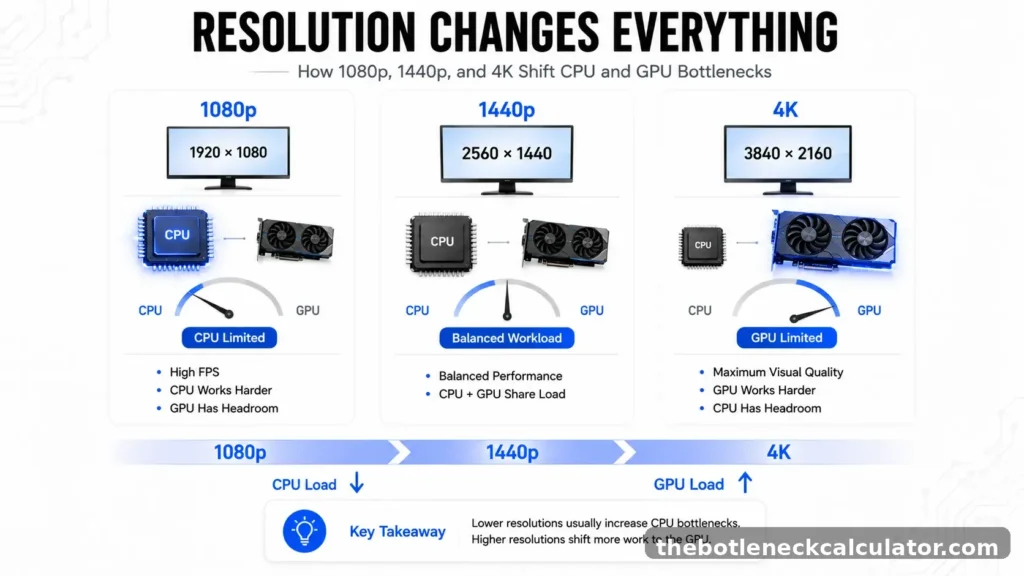
At 4K, the GPU becomes the star of the show. Rendering that many pixels is demanding even for strong hardware and CPU differences shrink dramatically because the graphics card is almost always the limiting factor now. This is why an older CPU can still perform surprisingly well at 4K when it’s paired with a powerful GPU, the GPU is doing nearly all the heavy lifting anyway.
Upscaling technologies like NVIDIA Deep Learning Super Sampling (DLSS), AMD FidelityFX Super Resolution (FSR) and Intel Xe Super Sampling (XeSS) and frame generation on top of them, can shift this balance further by reducing the GPU’s rendering workload, which sometimes makes a lingering CPU limitation more noticeable rather than less. They’re genuinely useful for easing a GPU bottleneck, but they don’t fix a CPU one, your processor still has to handle the same game logic and frame preparation either way.
| Resolution | CPU Bottleneck Behavior | GPU Bottleneck Behavior |
|---|---|---|
| 1080p | Often most severe here | Rare, unless the GPU is truly weak |
| 1440p | Noticeably eases | Becomes more common |
| 4K | Usually minimal or gone | The default state for most systems |
If you’re CPU-bottlenecked at 1080p, upgrading your monitor to 1440p before touching your CPU often delivers a bigger improvement than the CPU swap would. A GPU bottleneck doesn’t work this way.
It stays roughly just as GPU-bound at every resolution, since the graphics card was always the ceiling and resolution only changes how obvious that ceiling is. Resolution isn’t the only variable, though, the game itself changes the answer just as much.
Game Type Also Matters
Not every game leans on your hardware the same way and this is often what makes bottleneck advice feel contradictory between different sources.
The balance between CPU Bottleneck vs GPU Bottleneck also changes depending on the game engine, graphics settings and overall system workload.
CPU-heavy games put real weight on the processor, regardless of how good your graphics card is:
- Strategy titles (large maps, dozens of AI units)
- Simulation games
- Competitive shooters chasing high refresh rates
GPU-heavy games push rendering hard and rarely stress the CPU much at all:
- AAA story titles
- Ray-traced games
- Open-world epics with ultra settings turned on
Even within those categories, the engine itself makes a difference. Some engines lean heavily on one or two CPU threads instead of spreading work evenly, which is why going from 6 cores to 12 sometimes barely helps, while stronger single-core performance does more. Older DirectX 11 games also tend to pressure the CPU harder than titles built on DirectX 12 or Vulkan.
This is also why the same GPU can feel different from one game to the next. A card that handles one title effortlessly might struggle in another at the identical resolution, just because of how that engine was built. Don’t judge a bottleneck off a single game, test a couple first.
Streaming Makes CPU Problems Worse
A gaming PC rarely does just one thing anymore. Between streaming, recording, Discord, browser tabs and overlays running at the same time, the CPU is carrying a lot more than just the game.
Streaming specifically hits harder because your CPU has to encode video in real time while the game is running, essentially doing two demanding jobs simultaneously. This is why a system that games perfectly fine solo can suddenly start stuttering the moment you go live. Titles that already push CPUs hard on their own, Warzone, ARK: Survival Ascended, Helldivers 2, get noticeably worse once streaming software joins the workload. The heavier load also raises temperatures, which can trigger thermal throttling on top of everything else already competing for CPU time.
A few things actually help:
- Switch to hardware encoding: If OBS is set to software encoding (x264), your CPU is doing all the video compression alone. Switch to NVENC on NVIDIA cards or AMF on AMD and that job shifts to your GPU instead. It’s usually the difference between a stutter-free stream and a choppy one on the same hardware.
- Disable the live preview window: In your streaming software, it renders an extra copy of your output for no real reason while you’re live.
- Cap your in-game frame rate: Instead of letting it run uncapped while broadcasting, since every extra frame the game renders is extra work your CPU didn’t need to do.
- Check hardware acceleration in background apps: Discord and similar apps can use your GPU for overlays, which usually helps but occasionally causes resource conflicts while gaming and streaming together. If stutters persist, try disabling it temporarily to see if it helps.
Real Hardware Case Studies
Numbers make this easier to picture than theory alone. Here’s how this plays out with three real pairing types.
The CPU-Bound Scenario: Ryzen 5 3600 + RTX 5070 at 1080p A common upgrade pattern: someone jumps from an older GPU to something much stronger, expecting a big FPS gain and gets a fraction of it. GPU usage sits around 55-65% while one CPU core is pinned at 100%, a clear CPU bottleneck.
Two things typically compound this: RAM running below its rated speed (XMP disabled) makes the 1% lows noticeably worse and the Ryzen 5 3600 itself simply isn’t fast enough to feed a card this strong at 1080p. Enabling XMP alone often improves the worst stutters. A CPU upgrade on the same motherboard usually closes the rest of the gap, with GPU usage climbing into the 90s and the stutter disappearing.
The GPU-Bound Scenario: Ryzen 7 7800X3D + RTX 4060 at 1440p Here the CPU has plenty of headroom, no core pinned high, while GPU usage sits at 96-99%. The 7800X3D is fast enough. The RTX 4060 simply can’t keep up with 1440p at high settings and its 8GB of VRAM adds a second layer of trouble, texture pop-in and stutters once VRAM fills up on texture-heavy games. Lowering textures, shadows and ray tracing brings FPS up clearly, confirming the GPU is the actual limit. The real fix here is a stronger GPU, since no amount of CPU power changes what a maxed-out graphics card can render.
The Overkill Pairing: RTX 4090 + Core i5-9600K at 1080p This is the classic mismatch in the other direction. The GPU has enormous headroom, but an older, weaker CPU can’t keep frame delivery consistent at 1080p in modern titles. FPS still looks high on paper, just nowhere near what the 4090 is actually capable of.
For comparison, a Ryzen 7 7800X3D paired with an RTX 4070 Super shows what balance actually looks like at 1440p: the CPU has enough headroom for high frame rates and the GPU handles demanding visuals without constantly being held back. It’s not about hitting a perfect 0% bottleneck, it’s about matching components that deliver consistent performance where you actually play.
Common Mistakes Gamers Make
Most of the expensive mistakes here aren’t about bad luck, they’re patterns that repeat constantly.
Buying the strongest GPU with a weak CPU:This is the single most common one. It creates a CPU bottleneck at 1080p, shrinks the FPS gain the new card was supposed to deliver and wastes money on performance the system can’t actually use.
Ignoring your resolution and monitor: A system that bottlenecks badly at 1080p might run perfectly balanced at 4K, and a high-end GPU paired with a 1080p 60Hz monitor leaves a lot of that card’s potential unused. Think about what you actually play on before blaming a component.
Chasing a 0% bottleneck:This doesn’t exist. Every system has a limiting part somewhere. The real goal is a sensible balance, not a mythical perfectly even system.
Ignoring RAM speed: Slow or default-speed RAM quietly hurts CPU performance, especially on Ryzen. Enabling XMP or EXPO takes a couple of minutes and often closes part of the gap for free.
Never actually monitoring usage: Guessing which part is the problem instead of checking CPU usage, GPU usage, temperatures, and clock speeds wastes money on the wrong upgrade more often than people expect.
A few mistakes are less about balance and more about basic setup
| Mistake | Consequence | Fix |
|---|---|---|
| Display cable plugged into the motherboard instead of the GPU | Terrible FPS, using onboard graphics instead of your card | Move the cable to the graphics card’s output port |
| Plastic film left on the CPU cooler | CPU overheats almost immediately | Remove the film, reapply thermal paste, reinstall |
| Underpowered or low-quality PSU | Random shutdowns, coil whine, potential component damage | Match your PSU wattage and quality to your GPU’s actual requirements |
That first one sounds almost too basic to be real, but it happens constantly, especially on first builds. Plug the monitor into the motherboard and you’re running on integrated graphics while a perfectly good GPU sits there doing nothing.
Should You Upgrade CPU or GPU First?
Start with the simple version: whichever component is consistently pinned near 100% while the other has room to spare is the one to upgrade first. We covered how to check this properly earlier in this guide, five minutes with a free monitoring tool is all it takes.
After identifying a CPU Bottleneck vs GPU Bottleneck, upgrading the component that is consistently limiting performance delivers the biggest improvement.
Resolution narrows it down further
- 1440p or 4K gaming: GPU is almost always the smarter first upgrade, since higher resolutions shift the bulk of the workload onto the graphics card anyway.
- 1080p chasing high refresh rates, or simulation/strategy titles: CPU usually deserves priority, since these lean heavily on AI and physics processing rather than raw rendering.
There’s a practical cost angle to factor in too, one that gets skipped a lot:
- GPU upgrade: Typically plug-and-play. Check your PSU has the wattage and cables for the new card, and you’re done.
- CPU upgrade: Rarely that simple. Unless you’re staying on the same platform, it often means a new motherboard, and sometimes new RAM to go with it.
The CPU that looks like the “cheaper” upgrade on paper can end up costing considerably more once the platform costs are added in. Check your usage numbers, factor in your resolution and the games you actually play, and be honest about what the upgrade will really cost once everything’s accounted for.
The Verdict: Which One Is Actually Worse?
Here’s the thing most guides won’t say plainly: Being GPU-bottlenecked isn’t a problem you need to fix. It’s the state a gaming PC is supposed to be in.When comparing CPU Bottleneck vs GPU Bottleneck, a slight GPU bottleneck usually delivers a smoother and more consistent gaming experience than a CPU bottleneck.
When your GPU is the ceiling, everything about your system makes sense. Frame delivery stays consistent, the 1% lows stay close to the average, and the upgrade path is obvious: a stronger GPU gets you more FPS.
A CPU bottleneck offers none of that clarity. It creates a stutter that shows up exactly when you’re paying the closest attention, it doesn’t respond to lowering graphics settings and fixing it properly can mean upgrading your CPU, motherboard, and sometimes even your RAM.
There’s a fair counterpoint worth acknowledging: some builders argue a GPU bottleneck just means you overspent on the CPU relative to the GPU, and a more balanced budget would have avoided it. That’s a reasonable point for someone planning a new build from scratch. It matters much less if you’re already living with a CPU bottleneck today, since no amount of extra GPU spending fixes that. The CPU has to be addressed first, regardless of how the budget was originally split.
Judged purely on which one hurts your actual experience more, the answer isn’t close. A system pulling a lower, GPU-capped average plays more smoothly than one posting a higher, CPU-bottlenecked average, because consistency is what you actually feel while playing, not the number in the corner of the screen.
| Category | GPU Bottleneck | CPU Bottleneck |
|---|---|---|
| Feels like | Predictable, smooth | Stuttery, unpredictable |
| Fix | Upgrade GPU when ready | Address first, no way around it |
| Verdict | The one to aim for | The one to worry about |
If you had to pick one bottleneck to live with, pick the GPU. It’s the one that behaves.
The Bottom Line
A bottleneck isn’t inherently bad. It’s just information about where your system’s limit actually sits and what matters is knowing which side of that limit you’re on, whether it’s the predictable kind or the kind that stutters at the worst possible moment.
Check your usage numbers before you spend anything. Match your fix to the actual problem, resolution and settings for a GPU limit, a processor or platform upgrade for a CPU one. And if you’re building new rather than fixing an existing system, aim for the kind of balance that leans slightly GPU-bound rather than the other way around. It’s the version of “imperfect” that actually feels good to play on.
Still not sure whether your PC has a CPU or GPU bottleneck? Use our free Bottleneck Calculator to compare your processor and graphics card, identify the limiting component and find the best upgrade path before spending money on new hardware.