
Bottleneck Calculator | Check CPU & GPU Performance Instantly
Analyze your CPU and GPU performance compatibility,identify bottlenecks and optimize your PC’s overall performance in seconds.
Bottleneck Calculator
Check if your CPU or GPU is holding you back
Have you ever noticed your PC slowing down while gaming, video editing or handling other heavy tasks? You check your settings, internet connection, and even GPU temperature — but everything looks perfectly fine.
The real problem may be a bottleneck in your PC — input your PC details below and see how well your PC components are balanced.
Our free Bottleneck Calculator makes it easy to identify performance bottlenecks. Simply enter your CPU, GPU, RAM, and display resolution to receive an instant analysis, expected FPS, compatibility score, and personalized upgrade recommendations.
Whether you’re a gamer, streamer, video editor or just someone who wants a faster PC — this is the tool you actually need.
What Is a Bottleneck Calculator?
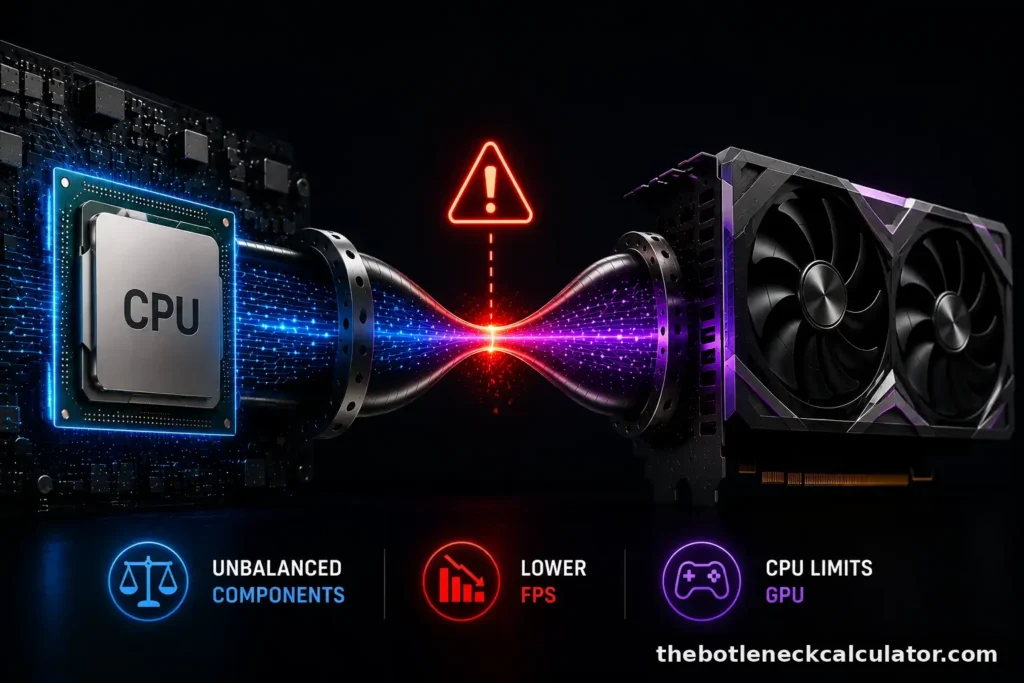
A PC bottleneck calculator is a free online tool that checks your CPU, GPU and RAM to find what is slowing your system down. A bottleneck happens when one component cannot keep up with the others — causing the whole system to underperform.
It’s like driving a sports car stuck behind a slow truck the engine has the power but the road won’t let it through. Your PC works the same way: a powerful GPU sitting behind a weak CPU never gets to show what it can really do.
For example, pairing a high-end GPU with an older CPU means the processor cannot feed the graphics card fast enough. The result? Your GPU sits underutilized while you experience FPS drops, lag and stuttering even on a costly build. The same problem works in reverse a powerful CPU with a weak GPU will struggle to display graphics quickly enough.
This Bottleneck Calculator goes beyond comparing specs on paper. It analyzes the real performance relationship between your components so whether you are gaming, editing, streaming or multitasking, you get accurate results and smarter upgrade decisions.Learn more About Us and how Bottleneck Calculator works, how I build the calculator and the mission behind providing accurate PC hardware guidance.
What is PC Bottleneck?
It is not always about old or cheap hardware. Even brand-new parts can bottleneck each other if they are not properly balanced.
Example of PC Bottleneck
Pair a Ryzen 5 2600 with an RTX 4060 — and the CPU will struggle to keep up in fast-paced games, even though the GPU itself isn’t particularly demanding.
You’ll notice inconsistent frame rates in titles like Warzone or Fortnite, where the processor matters more than raw graphics power.
How to Use Bottleneck Calculator (Step-by-Step)
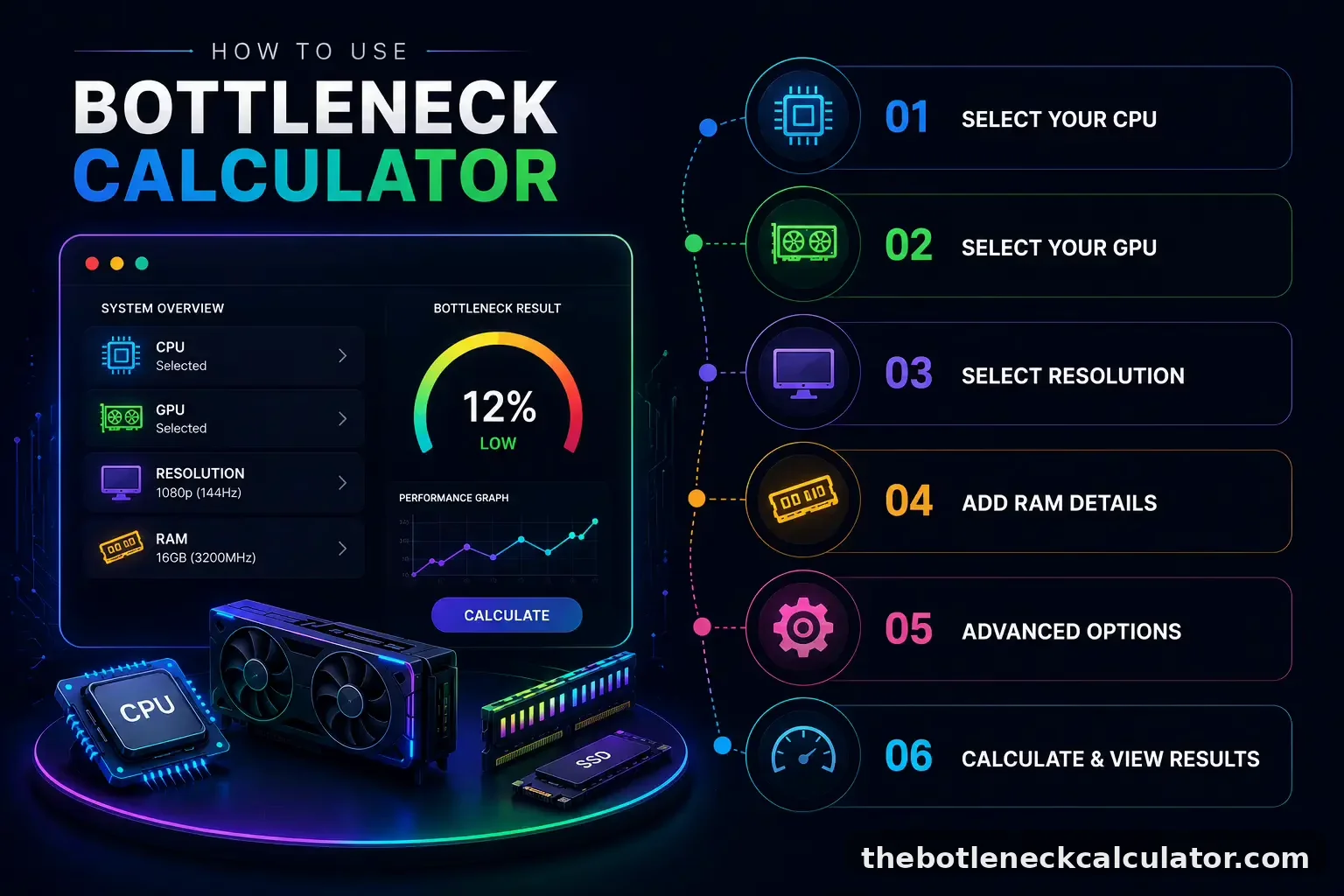
Using our Bottleneck Calculator is easy no matter if you are a gamer, video editor or running heavy applications, every user can use it without any technical experience. Just follow these simple steps:
Select CPU and GPU
From the drop-down list, choose your processor — Intel Core i5/i7/i9 or AMD Ryzen 5/7/9 — and your graphics card — NVIDIA RTX/GTX, AMD Radeon RX, or Intel Arc.
Building a new PC?
Just enter the parts you plan to buy.Not sure about your CPU or GPU model? Press Ctrl + Shift + Esc to open Task Manager — your hardware details will be right there.
Select screen resolution
Select the screen resolution you normally use.
Screen resolution directly affects how your CPU and GPU share the workload, which influences your bottleneck results.The Bottleneck Calculator supports resolutions from 720p to 8K, including ultrawide displays and high-refresh-rate monitors.
A detailed explanation of how different resolutions affect performance is provided later in the How Resolution and Target FPS Affect Bottlenecks section.
Set RAM Options
Set your RAM Options:
Next, select your RAM — it can significantly impact performance, especially on CPU-heavy tasks.
You can also configure:
- Storage: NVMe SSD, SSD or HDD
- Graphics Quality: Low, Medium, High or Ultra
- Refresh Rate: 60Hz, 120Hz, 144Hz or 240Hz
- Use Case: Gaming, Video Editing, 3D Rendering, Streaming, Programming or General Use
Set Advanced Options
Set your Advanced Options:
- Ray Tracing: On or Off
- DLSS/FSR Upscaling: Enabled or Disabled
- Background Load: Minimal, Typical or Heavy
- Cooling Setup: Standard or Enhanced
Select your actual use case.
Calculate and View Your Results
Click Calculate in our Bottleneck Calculator to get your performance report.After the analysis this calculator display:
- Bottleneck percentage
- CPU or GPU Bottleneck Result
- CPU-GPU Compatibility Score
- Expected FPS range
- System Efficiency Score
- Upgrade suggestions
You can also save your results to compare components before your next upgrade.
Results are performance estimates based on benchmark data and typical workloads. Actual performance may vary depending on your hardware configuration, drivers, software optimization, game engine and system settings.
How to Interpret Bottleneck Calculator Results?
Bottleneck calculator results can be confusing at first. Here is a complete breakdown to help you make the right decisions.
Understanding Your Bottleneck Percentage
The bottleneck percentage shows how much the slower component is limiting the faster one from reaching its full potential. As a quick rule: under 10% means your CPU and GPU are well balanced, 10–20% is a mild imbalance worth watching, and anything above 20–30% means an upgrade is worth considering. For the full breakdown of every percentage range, see our complete guide to good bottleneck percentages.
Important Things to Keep in Mind
Although tools like these Bottleneck calculators can be helpful, keep the following points in mind:
Driver updates, software optimization and software requirements are factors that may affect performance.
To choose the right upgrades, use the results and verify them with real-world testing and additional research.
Using these Bottleneck calculators correctly will help you get the best results and build a balanced and reliable system.
A high bottleneck percentage is a priority cue not a final verdict — always verify with real-world testing.
For esports a small CPU bottleneck may be fine if your target FPS is still met. For AAA gaming a GPU-heavy result is normal at 1440p and 4K.
System Efficiency Score
Your Bottleneck Calculator System Efficiency Score shows how well your PC components are working together. A score of 78% means your system is running at 78% of its full potential the remaining 22% is lost due to hardware imbalance.
To improve your score
- Enable XMP profile in BIOS for better RAM performance
- Check your RAM slots are properly seated
- Upgrade the bottleneck component for maximum efficiency
Enabling XMP/EXPO alone can significantly improve memory performance and, in many systems, noticeably increase the overall System Efficiency Score without requiring any hardware upgrade.
General Use Analysis
The Bottleneck Calculator general use analysis gives you a quick summary of your system’s performance and suggests upgrades based on your selected use case — gaming, editing or productivity.
Expected FPS Range
Hardware specifications appear impressive but they do not always represent real-world performance. Our Bottleneck calculator gives you an FPS range based on how your current hardware setup performs in everyday use.
It analyzes your resolution, RAM setup, primary use and any hardware mismatch affecting performance. Instead of showing best-case benchmark numbers it delivers a real-world performance range that matches what you can expect during actual gameplay.
CPU and GPU Bound Analysis
The bottleneck ratio shows how much your CPU or GPU is limiting the performance of another component. A large performance gap between components usually means one part is holding the other back.
This Bottleneck calculator helps you decide whether upgrading your CPU or GPU will make the biggest difference. When one part is much stronger than the other, adjusting settings or upgrading the weaker component will help balance your system.
Gaming Tier
| Tier | What It Means |
|---|---|
| Elite | Top gaming performance — handles any game at max settings with excellent frame rates |
| High | Great performance with smooth gameplay at 1440p and 4K resolutions |
| Mid | Good for 1080p gaming with some limitations in demanding games or higher settings |
| Entry | Playable performance with clear room for improvement through upgrades |
Upgrade Recommendations
Before acting on your Bottleneck Calculator results, double-check the components and settings you selected — even a small error can lead to misleading results.
If a component is holding back your performance, upgrading it can make a real difference. A CPU bottleneck means you may need a faster processor. A GPU bottleneck means your graphics card needs an upgrade for better gameplay and FPS.
Optimize Your System Performance
Actionable steps you can take based on your bottleneck results.
Immediate Fixes
Your system has a performance imbalance — try these quick actions before upgrading:
Update Drivers
Make sure your CPU and GPU drivers are up to date for the best performance
Close Background Apps
Close apps running in the background while gaming to free up system resources
Adjust Power Settings
Switch Windows to High Performance mode.
Upgrade Paths
Your results show which component needs attention first:
CPU Upgrade
If your CPU is the bottleneck, upgrade to a faster processor with better single-core performance, more cores or higher clock speeds.
GPU Upgrade
If your GPU is the bottleneck, upgrading your graphics card will give you better FPS and smoother gameplay
Future Proofing
if your CPU has extra headroom, plan your next upgrade around the GPU; if not prioritize the CPU first
Optimal Settings
To improve performance without upgrading hardware try these adjustments:
Resolution
Lower the resolution for higher FPS or increase it if your CPU is underutilized.
Graphics Preset
Use medium or high settings instead of ultra for a better balance between quality and performance
CPU Intensive Settings
increase settings like physics and draw distance if your CPU has extra headroom
GPU Intensive Settings
Lower settings like shadows and anti-aliasing to reduce GPU load and improve FPS
What Does Our Bottleneck Calculator Measure?
Most basic online tools simply compare CPU and GPU specs and spit out a number but that number rarely tells you what is actually happening inside your PC.Our Bottleneck Calculator works differently.
Instead of just comparing specs on paper it analyzes your complete hardware setup and checks how your CPU, GPU, RAM and resolution perform together under real workload conditions.
It looks at key factors most tools ignore
•IPC (Instructions Per Clock) — how many tasks your CPU completes in a single cycle
•Clock Speed — how fast your processor runs
•Core Count — how many tasks your CPU can handle at once
•Thread Scheduling — how efficiently your CPU manages multiple tasks simultaneously
•Memory Latency — how quickly your RAM responds to requests
•GPU Compute Power — how much graphical processing your graphics card can deliver
And the results reflect that Instead of a single percentage, you get
- Which component is holding back your performance and by how much
- Your Gaming Tier so you know exactly where your build stands
- Your expected FPS range based on your actual system and game settings
- A System Efficiency Score that gives you one clear rating for your entire se
Why Use Bottleneck Calculator?
Not all bottleneck tools are built the same. Most only compare CPU and GPU specs ignoring RAM, screen resolution and real-world workload behavior. Here’s what sets ours apart:
Target FPS Consideration
Tell us your target frame rate and get performance estimates that reflect real gameplay not just benchmark numbers.
RAM Impact Calculation
See exactly how your system memory is affecting performance and bottleneck severity.
Built for Everyone and Free
No technical knowledge needed. Whether you are a gamer, content creator, student or everyday user just enter your specs and go.
Supports Multiple Use Cases
Whether you are gaming, streaming, video editing, 3D rendering or just browsing get results tailored to your actual use case.
Always Updated Hardware Data
Our database is regularly updated with the latest CPUs, GPUs and benchmark data so your results are always accurate.
Clear Graphs and Easy Results
Simple graphs and bottleneck scores show you instantly whether your system is CPU-bound, GPU-bound or perfectly balanced.
Example CPU & GPU Bottleneck Results
| CPU | GPU | Bottleneck | Recommendation |
|---|---|---|---|
| Intel Core i5-14600K | NVIDIA RTX 4070 | 3% | Smooth performance for high-quality 1440p gaming |
| AMD Ryzen 7 7800X3D | NVIDIA RTX 4080 | 2% | Near-perfect balance for extreme gaming performance |
| Intel Core i5-12400F | NVIDIA RTX 3060 | 5% | Efficient budget-friendly 1080p gaming setup |
| AMD Ryzen 5 5600X | NVIDIA RTX 4070 Ti | 12% | CPU may slightly limit full GPU performance |
| Intel Core i9-14900K | NVIDIA RTX 4060 | 15% | GPU bottleneck affects high-end CPU potential |
| AMD Ryzen 5 3600 | NVIDIA RTX 4080 | 28% | Significant CPU limitation – upgrade recommended |
Percentages are estimates based on 1440p gaming at 144Hz target.
Who Should Use a Bottleneck Calculator?
Not sure if your PC components are working well together? Instead of guessing or relying on marketing claims here is who gets the most out of our Bottleneck calculator:
PC Builders
Before buying new parts, run your planned CPU and GPU combination through the calculator at your target resolution. A 31% bottleneck on an expensive GPU means you will lose a large part of its performance — checking first saves you from wasting money.
Users Upgrading Their Hardware
Upgrading only one component? Make sure the rest of your system can support it. For example, upgrading from an RTX 3060 to an RTX 4080 while keeping an i5-8400 will create a serious CPU bottleneck — your new GPU will not deliver the performance you expect.
Gamers Troubleshooting Performance Issues
If your PC feels slower than it should a bottleneck might be the reason. Test your current build with the calculator and confirm results using real-time monitoring tools like MSI Afterburner — you will clearly see which component is holding you back.
Content Creators and Streamers
Video editors, 3D artists and streamers can use the calculator to find out whether their CPU, GPU or RAM is limiting render times, real-time preview performance or stream quality.
Students and Beginners
New to PC building? The calculator helps beginners understand component compatibility before spending money on parts that may not work well together.
Whether you’re a builder checking parts before you buy or a streamer troubleshooting a laggy broadcast the same tool gives you a different answer depending on what you actually plugged in.
Understanding CPU and GPU Usage Scenarios
Understanding CPU and GPU usage patterns is one of the easiest ways to identify system bottlenecks. Monitoring hardware usage can help determine whether your system is CPU-bound, GPU-bound or operating normally under load.
Monitor CPU and GPU usage in tools like MSI Afterburner while playing Cyberpunk 2077 or Call of Duty Warzone. The table below shows what different usage combinations mean and what to do about them:
| CPU Usage | GPU Usage | Meaning | Action |
|---|---|---|---|
| 90 to 100% | 50 to 70% | CPU bottleneck – the processor is limiting GPU performance | Upgrade the CPU or increase resolution to shift more workload to the GPU |
| 90 to 100% | 95 to 100% | Both components are operating near maximum capacity | Normal behavior in demanding games and workloads |
| 50 to 70% | 95 to 100% | GPU bottleneck – the graphics card is the limiting component | Common at higher resolutions such as 1440p and 4K; consider a GPU upgrade for higher FPS |
| 50 to 70% | 50 to 70% | FPS cap, V-Sync or frame limiter may be restricting performance | Disable frame limits or review power settings if higher performance is needed |
| 90 to 100% | 90 to 100% with low FPS | Thermal throttling, VRAM limitations or extremely demanding workloads | Monitor temperatures, VRAM usage and cooling performance |
| Low | Low | The application is not fully utilizing available hardware resources | Update drivers, verify game files and check software optimization |
How Resolution and Target FPS Affect Bottlenecks
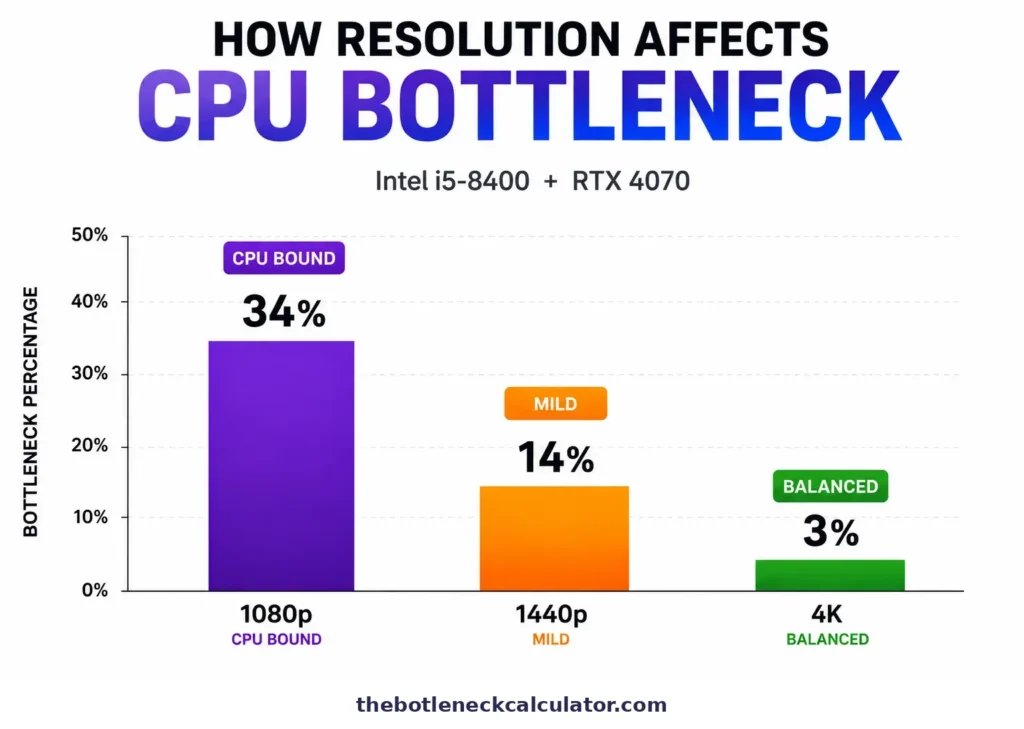
Your resolution and target FPS determine which component becomes your bottleneck and by how much. Here is what changes at each level:
1080p Gaming
At 1080p, the GPU renders frames quickly — leaving the CPU to do most of the heavy lifting.
●This makes CPU bottlenecks far more likely
●Especially in processor-intensive games
●Targeting high refresh rates like 144Hz or 240Hz pushes this even further
●Your CPU needs to prepare frames fast enough to keep up
1440p Gaming
At 1440p, workload shifts more toward the GPU — creating a better balance between CPU and GPU.
●High visual quality without as much CPU pressure
●The sweet spot for most gamers
●Many users report their system feels noticeably smoother after switching to a 1440p monitor
●No need to upgrade a single component to experience smoother performance
4K Gaming
Switching from 1080p to 4K puts roughly four times more workload on your GPU.
●Even high-end graphics cards can struggle at this resolution
●Your GPU consumes significantly more VRAM to store high-resolution textures
●If VRAM runs out, expect stuttering and freezing
●These issues can occur even on an otherwise capable system
Target FPS Considerations
Your FPS target matters too not just your resolution:
●Higher FPS targets (144Hz, 240Hz) = more CPU demand
●Lower FPS targets (60Hz) = more GPU workload
●Testing at your actual resolution and target FPS gives the most accurate bottleneck result
One important thing to remember a bottleneck will not damage your hardware. It simply means one component is holding the other back. Your system is still safe to use.
Real-World Bottleneck Examples
Sometimes the best way to understand a bottleneck is to see it in action. Here are some real scenarios that show how mismatched components affect different types of users.
High-End GPU Paired with an Older CPU
One of the most common mistakes is upgrading to a powerful GPU without upgrading the CPU. Take a Ryzen 5 2600 paired with an RTX 4070 at 1440p — the GPU is capable of excellent performance but the older processor struggles to keep up in CPU-intensive games.
At 4K, the GPU handles more of the workload so the CPU bottleneck becomes less noticeable. This shows how resolution directly affects which component works harder.
| Metric | Result |
|---|---|
| CPU | Ryzen 5 2600 |
| GPU | RTX4070 |
| Resolution | 1440P |
| Bottleneck % | ~31% CPU |
| Gaming Tier | Mid — GPU underutilized |
| Expected FPS | 68-84 FPS in demanding titles |
| System Efficiency | ~69% — performance being wasted |
| At 4K | ~11% bottleneck only |
| Recommendation | Upgrade to Ryzen 5 5600X or better |
How Bottlenecks Affect Different Users
Example 1: The Competitive Gamer
Ali loves playing online shooters. He has a powerful GPU but his older CPU keeps hitting 100% while gaming the result is lag, micro-stutters and inconsistent FPS. After running a bottleneck check, he discovers the CPU is the culprit. Upgrading to a modern processor fixes everything: smoother gameplay, better responsiveness and higher FPS.
Example 2: The Content Creator
Noor edits 4K videos daily in Adobe Premiere Pro and DaVinci Resolve. Her GPU is powerful but renders take forever and real-time preview keeps stuttering. After running a bottleneck test, she finds her CPU is maxed out while her GPU sits idle. Upgrading her CPU and adding more RAM cuts her rendering time significantly.
Example 3: The Casual Gamer and Streamer
Bilal assumed his lagging stream meant his CPU needed an upgrade. The bottleneck check told a different story — his GPU was actually the weak link. He switched to hardware encoding (NVENC) to take pressure off the CPU then upgraded just the GPU. One change, not two, fixed both his gameplay and his stream quality.
Example 4: The RAM-Limited User
A gamer with a well-matched CPU and GPU still experiences stuttering in modern games — the culprit? Just 8GB of RAM. Upgrading to 16GB eliminates the memory bottleneck instantly, improving both in-game performance and multitasking.Every user’s bottleneck is different — identifying the right one means you upgrade only what you actually need.
Recommended CPU and GPU Pairings to Avoid Bottlenecks
Choosing the right CPU and GPU pairing makes a bigger difference than most people realize. Mismatched components create bottlenecks that waste performance — even on expensive hardware. Here are some real examples to help you choose wisely.
Balanced CPU-GPU Pairings
| CPU | GPU | Recommended Resolution |
|---|---|---|
| Ryzen 5 5600X | RTX 3060 | 1080p |
| Intel Core i5-14400F | RTX 4060 | 1080p–1440p |
| Ryzen 7 7800X3D | RTX 4070 super | 1440P |
| Ryzen 7 9800X3D | RTX 5080 | 4K |
Bottleneck percentages are estimates based on gaming at listed resolution. Results may vary depending on game settings and workload.
Common CPU-GPU Mismatches
| CPU | GPU | Potential Issue | Bottleneck % | Limiting Factor |
|---|---|---|---|---|
| Intel Core i3-10100 | RTX 3080 | CPU may limit GPU performance | ~38% | CPU |
| Intel Core i5-8400 | RTX 4070 | CPU bottleneck in modern games | ~34% | CPU |
| Ryzen 5 3600 | RTX 4090 | High-end GPU may be underutilized | ~41% | CPU |
Balanced PC Builds for Different Budgets
| Component | Budget Build | Mid-Range Build | High-End Build |
|---|---|---|---|
| CPU | Intel Core i5 / Ryzen 5 | Intel Core i5/i7 or Ryzen 7 | Intel Core i7/i9 or Ryzen 7/9 |
| GPU | RTX 4060 / RX 7600 | RTX 4070 Super / RX 7800 XT | RTX 5080 / RX 7900 XTX |
| RAM | 16GB DDR4/DDR5 | 32GB DDR5 | 32GB–64GB DDR5 |
| Storage | 1TB SSD | 1TB–2TB NVMe SSD | 2TB NVMe SSD |
| Best For | 1080p Gaming | 1440p Gaming & Content Creation | 4K Gaming & Professional Workloads |
How to Future-Proof Your PC Against Bottlenecks
Fixing a bottleneck is one thing — preventing the next one is smarter. Before buying any new component, use our Bottleneck Calculator to test different CPU and GPU combinations so you know exactly how your upgrade will affect performance before spending a penny.
Here are the best practices to keep your system balanced long-term:
Smart Component Selection
- Match your CPU and GPU performance levels for example, a Ryzen 7 pairs well with an RTX 4070. Neither should significantly outperform the other. A balanced combination ensures both components work efficiently together without one holding the other back.
- Choose a monitor that matches your GPU a display with a resolution and refresh rate your GPU can actually handle ensures smooth gameplay and consistent frame rates. A 60Hz monitor wastes the potential of a system capable of 144 FPS always match your display to your GPU’s output.
- Ensure sufficient RAM — 16GB is recommended for most gamers, while 32GB or more is ideal for content creation and demanding multitasking workloads.
- When buying RAM, consider a single larger stick over multiple smaller ones- for example, one 16GB stick instead of two 8GB sticks. This leaves memory slots open for easy future upgrades.
- Use fast storage — an SSD or NVMe significantly improves boot times, application loading speeds and overall system responsiveness compared to a traditional HDD.
System Optimization
- Keep OS, drivers and firmware updated — regular updates improve compatibility, stability and performance across all your components.
- Remove temporary and unnecessary files — clearing junk files frees up storage space and helps your system run more efficiently over time.
- Disable non-essential startup programs — fewer startup apps mean faster boot times and more available resources for your active workloads.
- Use High Performance or Ultimate Performance power plan this allows your CPU and GPU to operate at their full potential during demanding tasks and gaming sessions.
Long-Term Upgrade Planning
- Choose a future-ready motherboard select one that supports upcoming CPU, RAM and storage upgrades so you are not forced to replace your entire platform too soon.
- Invest in reputable components — quality hardware from trusted manufacturers offers better reliability, longevity and long-term value.
- Consider modern technologies — when building or upgrading, look for support for PCIe 5.0, USB4, Wi-Fi 6E and DDR5 to future-proof your system.
- Replace aging components strategically — upgrade individual parts when they no longer meet your performance needs rather than overhauling your entire system at once.
- Stay informed about emerging hardware — keeping up with new standards and technologies helps you make smarter upgrade decisions over time.
Taking a long-term approach to upgrades keeps your system balanced and saves you money in the long run.
How Accurate Is a Bottleneck Calculator?
But here’s what makes our Bottleneck Calculator more accurate than most:
Results are based on benchmark data, hardware specifications and typical workload assumptions. Actual performance may vary depending on drivers, software optimization, cooling, background processes and game-specific behavior.
What Can Affect Accuracy
- Game engine and software optimization
- GPU and chipset driver versions
- Display resolution and graphics settings
- Background processes and system load
- Cooling performance and thermal throttling
What It Is Good For
- Identifying potential CPU/GPU mismatches before buying
- Comparing component combinations
- Planning smarter upgrades
- Getting a realistic performance baseline
How Our Bottleneck Calculator Compares
| Feature | Our Bottleneck Calculator | Most Competitors |
|---|---|---|
| Gaming Tier | Elite, High, Mid, Entry | Not available |
| Expected FPS Range | Per resolution and use case | Not available |
| System Efficiency Score | Hardware potential % | Not available |
| Resolution Support | 720p to 8K + ultrawide | Limited |
| Use Case Modes | 6 modes including Streaming | Gaming only |
| Component Coverage | CPU, GPU, RAM, Storage | CPU/GPU only |
Our Bottleneck Calculator Compares: For the most accurate picture, combine calculator results with real-time monitoring using MSI Afterburner or HWiNFO- or run a full benchmark with 3DMark.
Laptop Bottlenecks and How to Identify Them
Bottlenecks are not just a desktop problem — laptops face the same performance limitations and in many cases, they are harder to fix.
Unlike desktop PCs, laptops operate within tight thermal and power constraints. Even if your CPU and GPU are well-matched on paper, sustained performance can drop during heavy workloads due to thermal throttling — especially in thinner or budget models.
Key Differences From Desktop
- Laptop components are often soldered — CPU and GPU cannot be upgraded
- RAM may or may not be upgradeable depending on the model
- Storage is usually the only easily upgradeable component
- Cooling limitations mean thermal throttling is more common
How Our Calculator Helps Laptop Users?
Even if you cannot upgrade your laptop hardware, our Bottleneck Calculator helps you:
- Understand which component is limiting your performance
- Optimize settings for your current hardware
- Decide whether upgrading to a new laptop is worth it
- Compare laptop configurations before buying
Pro Tip: If you are buying a new laptop for gaming or content creation, use our Bottleneck Calculator to check the CPU and GPU balance before purchasing — many laptops pair weak CPUs with powerful GPUs, or vice versa.
Conclusion
A bottleneck does not mean your PC is faulty it simply means one component is limiting the performance of another. Even a high-end system can experience bottlenecks if its hardware is not properly balanced.
Our Bottleneck Calculator helps you identify whether your CPU, GPU, RAM, storage or other components are holding your system back. By understanding your results, you can avoid unnecessary upgrades, improve performance and build a more balanced PC.
Remember that bottleneck percentages are estimates based on benchmark data and typical workloads. Actual performance may vary depending on your hardware configuration, software optimization, drivers, cooling and the applications or games you use.
Ready to check your system? Use our free Bottleneck Calculator above to analyze your PC, compare different hardware combinations and make smarter upgrade decisions with confidence.Have questions about your results or need help choosing PC components? Visit the Contact Us page and I’ll be happy to help.