
What Is FPS? Frame Rate Explained for Every Screen You Use
Last Updated:July 19, 2026
What Is FPS?You crank every setting to max, hit play, and the game looks incredible, right up until you move the camera and it stutters. Maybe gaming isn’t even your thing. You exported a video and the playback looks choppy no matter what settings you pick, or your stream keeps dropping frames for viewers while your own screen looks fine. Three different situations, same number quietly wrecking all of them.
That number is FPS, frames per second. Whether you’re gaming, cutting a timeline in Premiere, or streaming to an audience, it works the same way underneath, and once you know what it’s actually measuring, fixing it stops feeling random.
This covers what FPS actually means, what counts as good depending on what you’re doing, why it drops, and how to raise it without buying anything new first.
What Does FPS Mean?
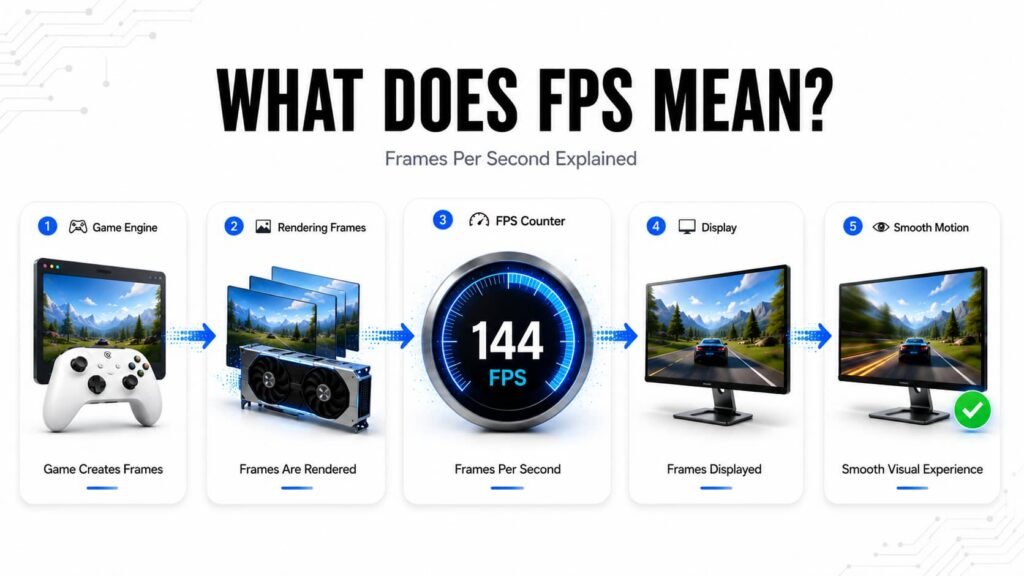
What is FPS? FPS stands for frames per second the number of individual images your screen displays every second. More of them in that one second means smoother, more fluid motion, whether that’s a character turning in a game, a timeline playing back in your editor, or a stream reaching your viewers without stuttering.
Worth clearing up early, because it catches people off guard constantly: FPS also stands for first-person shooter, the game genre. If a sentence about “boosting your FPS” made you pause for a second wondering which one, that’s why Context usually sorts it out fast.
What counts as a good number shifts depending on what you’re doing, and that’s one of the more confusing parts for beginners. 24 FPS is the traditional film standard, and it’s not a limitation so much as a deliberate choice that gives movies their familiar look.
30 FPS is the low end of playable for most games, functional but noticeably rougher once you’ve seen better. 60 FPS is the common baseline most people should aim for, whether they’re gaming, editing, or streaming. Past that, 120 FPS and up starts mattering specifically for competitive gaming, where shaving off input lag actually changes outcomes.
FPS vs. Refresh Rate (Hz): What’s the Difference?
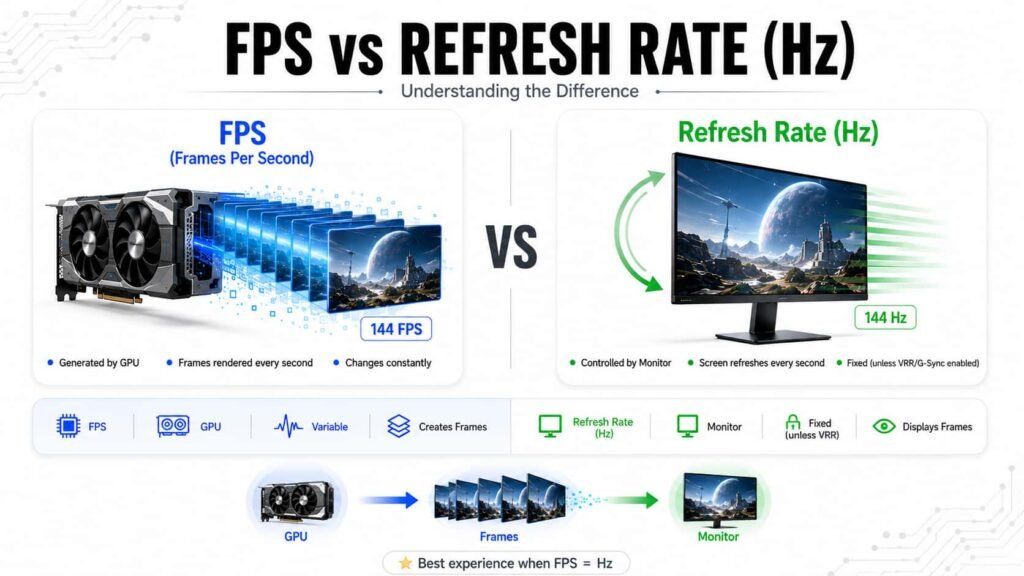
People mix these up constantly, and it’s an easy mistake. FPS is how many frames your GPU produces every second. Refresh rate, measured in Hz, is how many times your monitor can actually update the image every second. One’s about your hardware working; the other’s about your screen keeping up.
| Metric | What It Measures | Controlled By |
|---|---|---|
| FPS | Frames your hardware generates per second | Your GPU, CPU, and game settings |
| Refresh Rate (Hz) | Times per second your monitor updates the image | Your monitor’s hardware |
A high FPS number doesn’t mean a smooth picture on its own, and that’s the part that actually trips people up. Push 144 FPS to a 60Hz monitor and you’ll only ever see 60 of those frames, the other 84 rendered for nothing. Match that same 144 FPS to a 144Hz monitor, though, and you’re seeing everything your GPU was actually doing all along.
That mismatch is also where screen tearing comes from: the visual glitch where part of the frame looks stitched together wrong, because your GPU handed over a new frame mid-refresh.
How V-Sync, G-Sync, and FreeSync Fix This
V-Sync holds the GPU back so it only sends frames the monitor is ready for, trading a bit of input lag for zero tearing. G-Sync and FreeSync solve it more elegantly instead of making the GPU wait, the monitor adjusts its own refresh rate on the fly to match. It’s why most modern monitors are built around one of these two rather than plain V-Sync.
Match your FPS to your refresh rate as closely as you can. A high FPS number on a low-Hz monitor is just money left on the table.
How FPS Works Across Gaming, Editing, and Streaming
A frame is just a single still image. Show enough of them fast enough, and your brain reads it as motion. That’s the trick behind every screen you own, but who generates those frames changes depending on what you’re doing.
| Context | Who Generates the Frames | What Affects It |
|---|---|---|
| Gaming | Your graphics card, rendered live as you play | CPU/GPU power, game settings, resolution |
Video Editing | Your footage’s original frame rate, played back through your software | Timeline resolution, effects load, storage speed |
| Streaming | Your GPU encodes frames live and sends them out simultaneously | Encoder settings, upload bandwidth, CPU load |
Gaming is the easy one. Your GPU renders each frame the moment it’s needed, live, reacting to whatever you just did. That’s why a weak GPU shows up as a stutter almost instantly.
Editing confuses people more than it should. Your footage’s FPS got locked the second you hit the record. Your editor’s only job afterward is playing that back smoothly, which is really a storage problem wearing a frame-rate costume. Choppy timeline? Blame your drive before your footage.
Streaming does both jobs at once: rendering and encoding, in the same sliver of a second. That’s why it hits FPS harder than gaming alone, and why a system that games fine can still tank the moment you start broadcasting.
One more thing: FPS can run locked or unlocked. Locked keeps the number fixed to match your monitor. Unlocked lets your hardware push as high as it can, which looks great but swings more than expected.
How the Human Eye Perceives Frame Rate
There’s a myth that refuses to die
The human eye can only see 24 FPS, so anything beyond that is wasted. It’s not true.
Your eyes don’t have a shutter or frame rate at all. They send a continuous stream of signals to your visual cortex, no gaps between frames. So the real question isn’t “how many FPS can the eye see,” it’s “when does your brain stop noticing a difference?”
That comes down to two things
Critical flicker fusion
The point where flickering light starts looking like one steady stream. Motion feels real around 10-15 FPS, but flicker keeps registering up to roughly 60Hz, which is why old 60Hz monitors still feel behind modern ones.
Rods versus cones
Cones (central vision) handle detail but react slowly. Rods (peripheral vision) are fast and motion-sensitive, which is why you catch flicker out of the corner of your eye even while staring elsewhere.
This is also why film and gaming need different frame rates:
| Medium | Typical FPS | Why It Works |
|---|---|---|
| Film | 24 FPS | Relies on motion blur; the brain fills in the rest |
| Gaming | 60–240 FPS | Sharp, distinct frames with no blur, so it needs more of them |
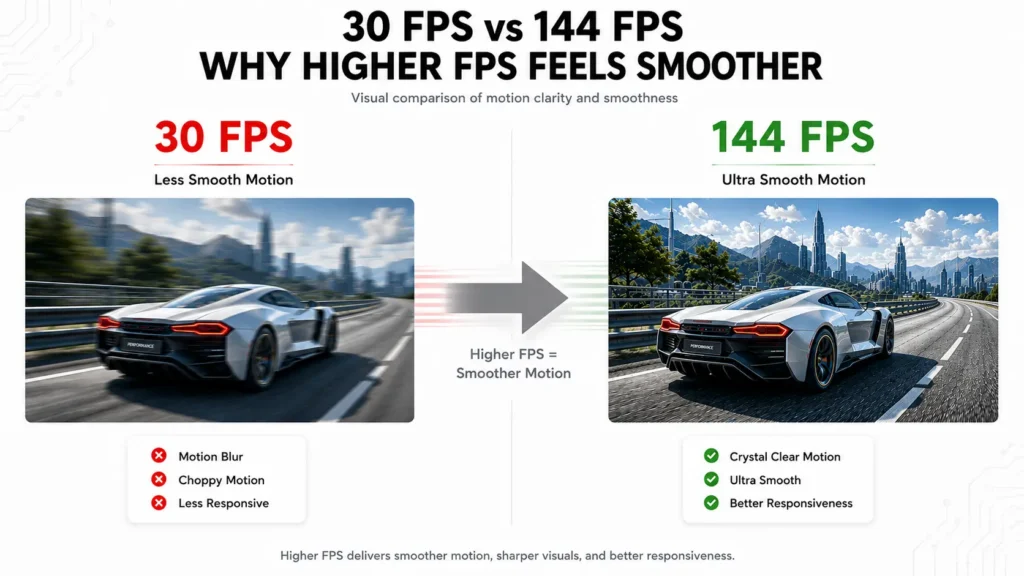
A game at 24 FPS wouldn’t look cinematic, it would look like a slideshow. There’s no blur cushioning the gap the way there is in film.
Does the improvement ever stop?
Not sharply. Most people notice a real jump from 60 to 120 FPS. Competitive players keep noticing gains up toward 240. Past that, the differences get small, and chasing 240 FPS at that point is more about bragging rights than anything your eyes are actually clocking.
What Affects Your FPS?
Your frame rate comes down to five things, mostly, and when it’s low, the cause is almost always one of them.
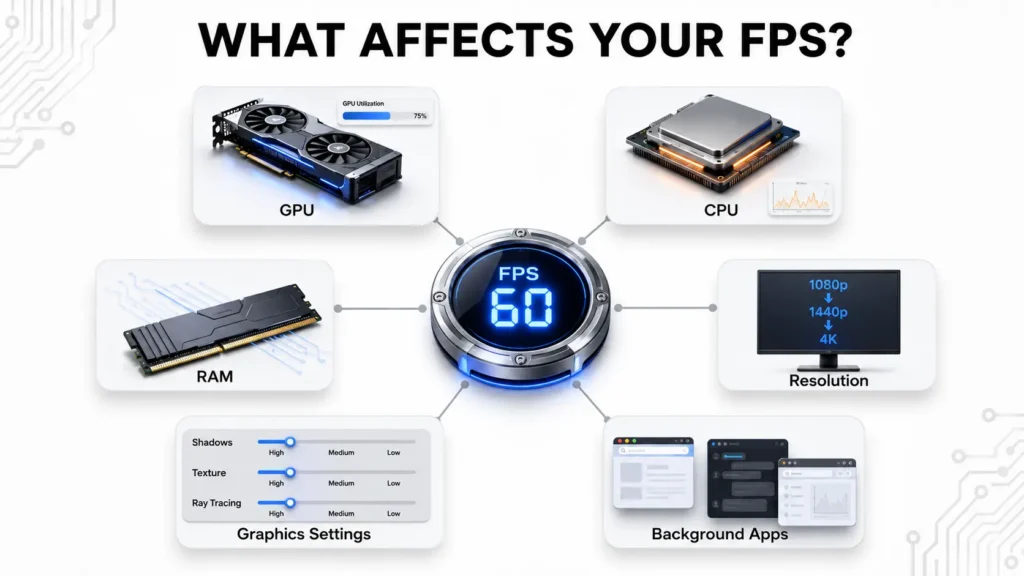
- Your GPU the single biggest factor for gaming. It renders every frame, so a stronger card directly means more frames per second, especially at higher resolutions.
- Your CPU handles physics, AI, and game logic behind the scenes. A weak CPU can cap your FPS well below what your GPU is actually capable of, no matter how good the graphics card is.
- RAM too little, or too slow, and you get stuttering rather than a flat drop in FPS. Enabling XMP or EXPO in your BIOS gets your RAM running at the speed it’s actually rated for, which a lot of systems never bother to turn on.
- Resolution and graphics settings Jumping from 1080p to 4K doesn’t just increase GPU load a little, it roughly quadruples it. Heavy settings like shadows, ambient occlusion, and ray tracing add up fast too.
- Game optimization Sometimes it’s not your hardware at all. Some games are just poorly optimized on launch, and no amount of upgrading fixes a badly coded game running badly.
One thing worth a quick correction
upscaling tools like DLSS or FSR genuinely boost FPS, but they do it by easing GPU load specifically. If your bottleneck is actually your CPU, not your GPU, these tools help far less than people expect, since your processor still has to do the same amount of work either way.
Background apps and outdated drivers matter too, though we’ll get into fixing those properly in the next section.
What’s a Good FPS Number? (By Use Case)
There’s no single right answer here, and anyone who gives you one flat number without asking what you’re playing is guessing. The right FPS depends far more on the genre than most people assume.
Competitive Shooters (Valorant, CS2, Apex)
Aim for 144 FPS or higher. Every extra frame shaves off reaction time here, and in games where rankings hinge on split-second aim, that difference is real, not placebo.
Open-World and Story Games (Elden Ring, RDR2)
60 FPS is genuinely enough. These games prioritize visual detail over split-second reactions, so a steady 60 feels immersive without needing to chase anything higher.
Strategy and Simulation Games (Civilization, city-builders)
30 to 60 FPS works fine. No fast reflexes required, so it makes more sense to spend your GPU’s power on graphics quality instead of squeezing out extra frames nobody needs.
Video Editing and Streaming
60 FPS keeps playback and preview smooth without demanding gaming-tier hardware, and going higher rarely adds anything noticeable for these tasks.
A stable number matters more than a high one, and this is where a lot of people get tripped up. If your game reports 100 FPS but the frame delivery is erratic, jumping between 60 and 130 from one second to the next, it’ll feel worse than a rock-solid 60. That gap between frames is called frame time, and inconsistent frame times are exactly what causes microstutters even when your average FPS looks great on paper.
FPS Drops, Stutters, and Lag Explained
Lag is a network issue, not a hardware one. It’s the delay between your input and the game server hearing about it, measured in milliseconds, and it’s why you sometimes see characters teleport or shots that clearly landed get ignored. Fixing lag means fixing your connection, not your PC.
Stutter is a frame-time problem. Your average FPS can look perfectly healthy, say 80, while individual frames still take wildly different amounts of time to render. Most frames might take 12 milliseconds, then suddenly one takes 100. That single spike is what you actually feel as a freeze, even though it barely dents your overall average. This is exactly why a stable 60 FPS often feels smoother than an erratic 100, the average lies, the consistency doesn’t.
FPS drops are a hardware problem, plain and simple. Your system briefly can’t keep up, usually right when a demanding scene, an explosion, a crowded area, hits your CPU or GPU harder than the rest of the game did.
A few things commonly cause the stutter and FPS-drop side of this:
- Thermal throttling. Once your CPU or GPU crosses roughly 85 to 90°C, it deliberately slows itself down to avoid damage. Clean the dust out of your fans and vents, and if you’re on a laptop, prop up the back or grab a cooling pad.
- Background apps and overlays. Discord’s hardware acceleration, a dozen browser tabs, and stacked overlays (Steam, GeForce Experience, Xbox Game Bar) all quietly eat into the same resources your game needs. Close what you don’t need before playing.
- Outdated drivers and power settings. Keep your GPU drivers current, and set your Windows power plan to High Performance so your hardware isn’t artificially held back.
- A slow drive. An aging HDD struggling to load textures in real time causes exactly the kind of frame-time spikes described above. Moving your games to an SSD usually fixes this outright.
CPU vs. GPU Bottleneck and FPS
A bottleneck just means one part of your system is holding the rest back, and it always shows up the same way: one component pinned near 100%, the other sitting well below what it’s capable of.
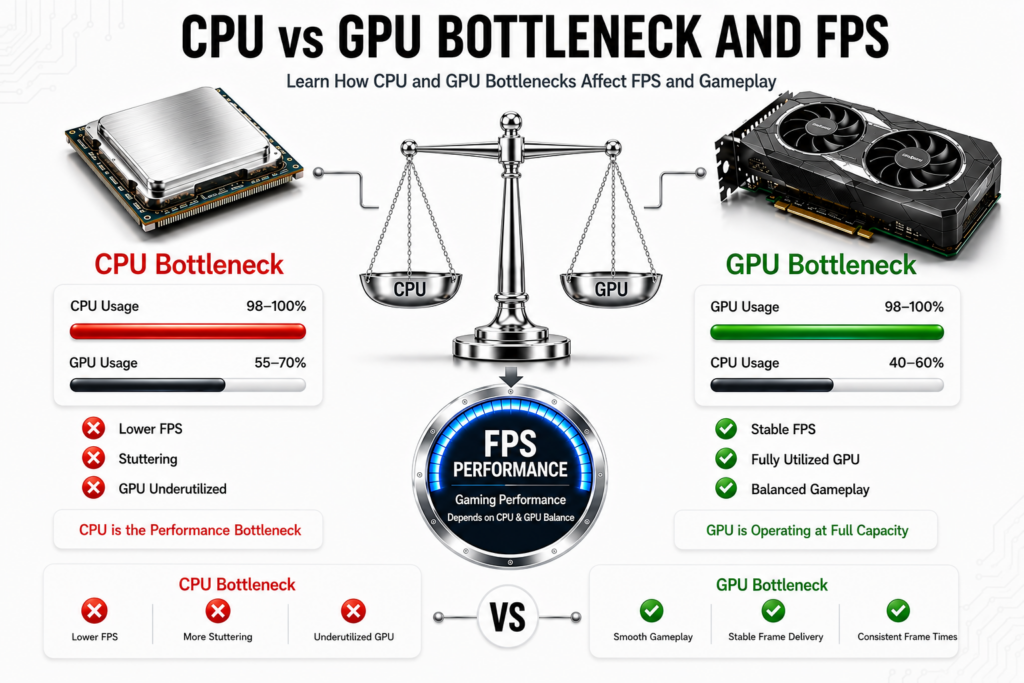
CPU-bound means your processor is the limiting factor, busy preparing game logic, AI, and physics faster than it can handle that work off, so your GPU waits with capacity to spare. Common in open-world games, simulation-heavy titles, and anytime background apps are running alongside your game.
GPU-bound means your graphics card is the one maxed out, rendering pixels, lighting, and textures as fast as it can while your CPU still has room left. This is actually the bottleneck you want: it caps your FPS at whatever your GPU can push, but the frame delivery stays smooth and predictable, which feels better than a CPU bottleneck even at a lower number.
Resolution plays into this directly. At 1080p, the GPU renders frames fast enough that the CPU becomes the thing struggling to keep pace. Bump up to 1440p or 4K, and the GPU does more work per frame, easing pressure off the CPU.
A quick way to tell which one you have: lower your in-game graphics settings or resolution. If your FPS goes up, you are GPU-bound. If your FPS barely moves, your CPU was the bottleneck all along, and no graphics setting was ever going to fix that.
This only scratches the surface of CPU bottlenecks specifically, what causes them, how severe is too severe, and how to actually fix one without buying new hardware. We’ve covered all of that in detail in our full CPU bottleneck guide, worth a read if this is the piece of your system that’s holding you back.
How to Check Your FPS
Most of the tools for this are already sitting on your PC, no extra install needed.
On Steam
Settings > In-Game > turn on the In-game FPS counter, and pick a corner for it to sit in.
For any game, regardless of platform
Windows Key + G opens the Xbox Game Bar. Open the Performance widget and pin the FPS display.
With a dedicated NVIDIA or AMD card
NVIDIA users press Alt+Z, go to Settings, then HUD Layout, and enable the FPS counter. AMD users open Radeon Software, go to Performance, then Tracking. These overlays are worth using anyway since they often show GPU temperature and usage alongside FPS, useful if you’re trying to spot a bottleneck.
For more detail
MSI Afterburner shows FPS alongside real-time CPU and GPU usage, the most useful combination if you’re trying to figure out which component is holding you back.
One distinction worth making
None of this is the same as benchmarking. Tools like 3DMark or Unigine Heaven push your system to its absolute limit under controlled conditions, useful for comparing PCs or testing after an upgrade, but not what you’d use to just check your FPS while playing normally.
How to Increase FPS (Without New Hardware)
Most of what actually moves the needle here is free. We’ve already covered drivers, background apps, resolution, and thermal issues earlier in this guide, so here’s what’s left, the fixes people usually miss.
Check your monitor and cable first
If your GPU renders 240 FPS but your monitor caps at 60Hz, the extra frames are thrown away, not your GPU’s fault. For 4K at 120Hz or higher, you need HDMI 2.1 or DisplayPort 1.4+. And if your monitor supports G-Sync or FreeSync, turn it on, it quietly fixes tearing for free.
Enable Resizable BAR (or Smart Access Memory on AMD)
This lets your CPU access your GPU’s entire VRAM at once instead of in small chunks, a free 5 to 6% FPS boost most people have never turned on simply because they don’t know it exists.
Set your game’s priority to High in Task Manager
Right-click the game’s executable under Details, and set priority to High. Costs nothing, tells Windows to give your game more CPU attention than background processes.
Turn on upscaling if your game supports it
DLSS, FSR, and XeSS render internally at a lower resolution and sharpen the output, boosting FPS with a visual hit most people don’t notice at normal viewing distance.
Look into FPS unlockers, carefully
Some titles like Elden Ring or Genshin Impact lock FPS artificially for stability, and community unlockers exist to remove that cap. Stick to reputable sources, since unofficial mods can cause instability or get flagged by anti-cheat.
Consider more RAM
especially for open-world or memory-heavy games. 8GB is fine for older titles, 16GB is the realistic standard now, and 32GB starts making sense if you’re streaming or multitasking heavily while playing.
None of this replaces a genuine hardware bottleneck. If your CPU or GPU is several generations behind what the game needs, these tweaks help at the margins, they don’t erase the gap. Running your specs through an FPS calculator first can save you some trial and error.
Common FPS Myths
A few ideas about FPS get repeated so often they have become “common knowledge,” and most of them are wrong.
More FPS is always better
Not really. Past your monitor’s refresh rate, extra frames just generate heat for no visible benefit. Push 300 FPS on a 144Hz screen, and only 144 ever get shown.
The human eye can’t see past 24 or 60 FPS
We’ve already covered why this is wrong earlier in this guide (your eyes don’t work in frames at all), but it’s worth repeating since it’s the most common excuse people use to dismiss high refresh rate gaming.
Higher FPS doesn’t matter below your monitor’s refresh rate
Still wrong. Even capped at 60Hz, pushing 200 FPS reduces input lag, since your system registers inputs closer to the moment they happen. You won’t see the extra frames, but you’ll feel the responsiveness.
Average FPS tells you how smooth a game feels
The most misleading one here. A game averaging 150 FPS that occasionally drops to 30 will feel rough, even though the average looks great. What actually matters is your 1% lows, the worst-performing 1% of frames, since that’s what you feel as stuttering.
The Bottom Line
What Is FPS? It’s more than just a gaming statistic.FPS is not just a gaming stat. It’s the same number whether you’re fragging enemies, editing a timeline, or streaming to an audience, and it works the same way underneath all three. Higher is not always better past a point, consistency matters more than the average, and half the “fixes” people chase, background apps, most Windows tweaks, barely move the needle compared to the ones nobody talks about, like Resizable BAR or actually matching your monitor to your FPS.
Keep in mind that FPS varies from one game to another even on the same PC, depending on optimization, settings, drivers, and what’s running in the background, so treat every number in this guide as a reference point, not a guarantee.
If you take one thing from this guide: check where your bottleneck actually is before spending money. A mismatched CPU, an outdated cable, or a 60Hz monitor holding back a 240 FPS GPU can all look identical from the outside, your game just doesn’t feel as smooth as it should, but the fix for each one is completely different.