
What Is a CPU Bottleneck? The Real Reason Your PC Feels Slow
Last Updated: July 19, 2026
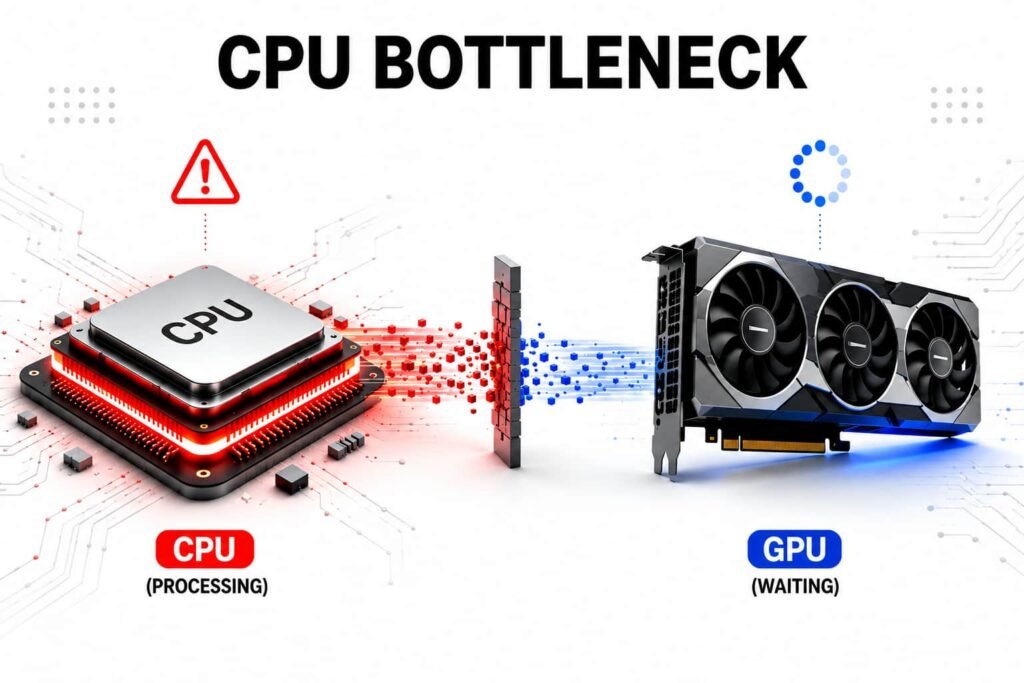
You just spent good money on a new graphics card. It arrived, you installed it, fired up a game, and the frame rate barely moved. Task Manager shows your CPU pinned at 100% while the GPU sits at 60%, half-asleep. Something’s holding your whole system back, and it isn’t the part you just paid for.
That’s a CPU bottleneck. Your processor can’t hand off data to the graphics card quickly enough, so the GPU spends part of every frame just sitting idle. Your card isn’t broken or defective. Your CPU is simply out of its depth here, not your GPU.
So let’s figure out why it happens, how to check your own PC for it in under a minute, and whether it’s actually worth fixing or just something you live with.
The Simplest Way to Understand a CPU Bottleneck
Forget the textbook definitions. Here’s how it actually plays out.
Picture a fast-food kitchen. Your GPU is the grill cook, fast and efficient, capable of flipping 100 burgers a minute. Your CPU is the cashier taking orders. If the cashier can only ring up 40 orders a minute, it doesn’t matter how fast the cook is. The kitchen output caps at 40 burgers, no matter what.
That’s a CPU bottleneck in a nutshell. Your processor becomes the slowest step in the chain that feeds your GPU work, and everything downstream, frame rate included, gets held to its pace. Want to see if your own PC has a CPU or GPU bottleneck? Try our Bottleneck Calculator to analyze your system.
On your actual system, that looks like this:
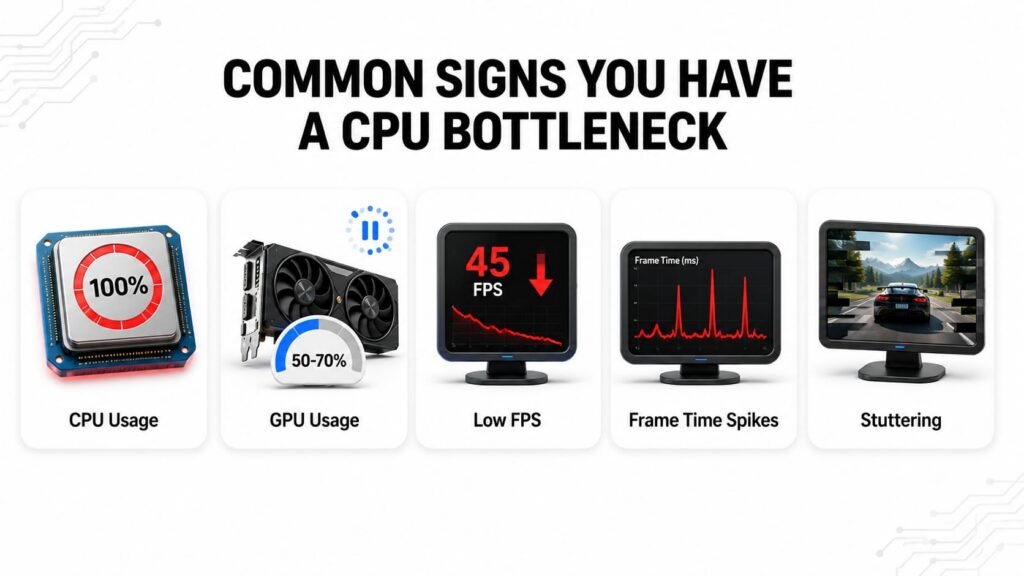
- GPU usage sitting at a lazy 50–70%, when it should be pushing 95–99%
- FPS that’s noticeably lower than what your card is capable of
- CPU pinned at 90–100%, working overtime just to keep up
- Stutters and dips in busy, action-heavy scenes, even when your average FPS looks perfectly fine on paper
People love to blame the GPU, the RAM, even the monitor, anything except the actual cause. But when a powerful GPU quietly underperforms, the processor feeding it is usually where the problem starts.
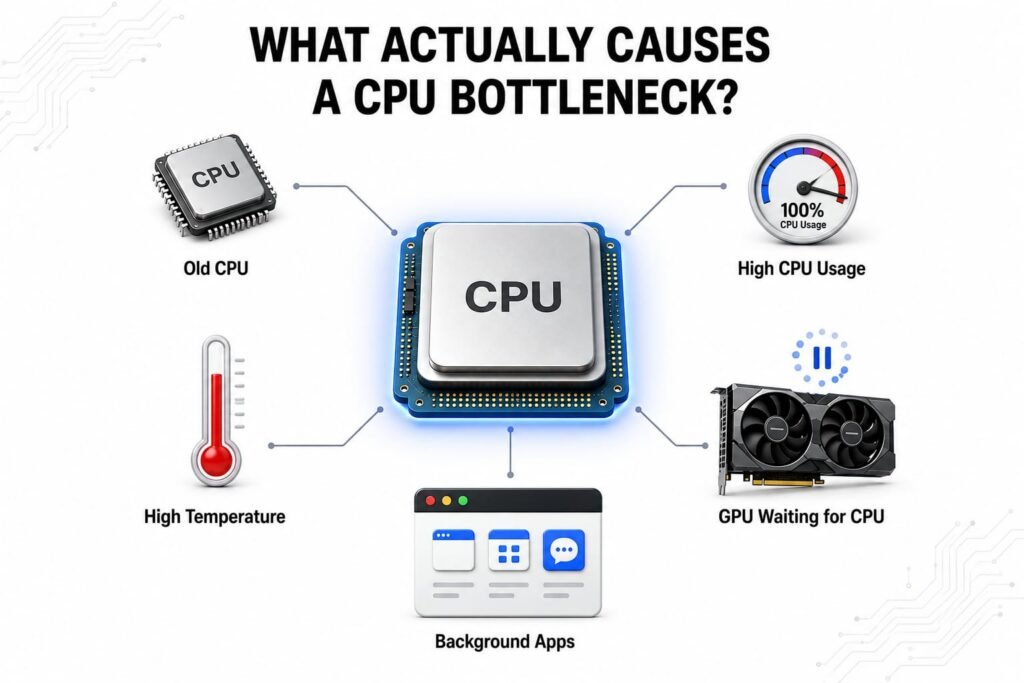
What Actually Causes a CPU Bottleneck
Not every PC runs into this. It shows up under fairly specific conditions, and once you know what they are, spotting your own cause takes seconds.
Pairing an old CPU with a modern GPU
This is the cause behind most CPU bottlenecks, by a wide margin. Dropping a current-gen graphics card into a rig still running a six- or seven-year-old processor is a bit like hooking a sports car engine to a wagon frame. The engine’s got the power. The frame can’t handle it.
Playing CPU-heavy games
Not all games lean on hardware the same way. Open-world titles, city-builders, and large-scale multiplayer games all put heavy demand on the processor specifically: physics, AI pathing, world logic. Even a decent mid-range chip can choke here, regardless of the graphics card next to it.
Gaming at 1080p (yes, really)
This one catches almost everyone off guard. Lower resolutions actually raise your risk of a CPU bottleneck, not lower it. Here’s why: at 1080p, your GPU renders each frame so quickly that the CPU has less time between frames to finish its own work. Push the resolution up to 1440p or 4K, and the GPU takes longer per frame, handing the CPU more breathing room. A lot of “budget” 1080p builds end up more bottleneck-prone than 4K ones, which surprises people every time.
Background processes eating CPU cycles
OBS running quietly, a dozen Chrome tabs, a Discord overlay: none of that is free. Every one of these competes with your game for the same CPU cycles. On paper it’s the same chip. In practice, it’s doing two jobs at once.
Low core or thread count
Modern games spread work across multiple cores. A CPU with only four cores or a handful of threads simply runs out of room when a game tries to parallelize physics, AI, and rendering prep at the same time. No amount of clock speed fully makes up for that.
Thermal throttling
This one’s sneaky because it produces the exact same symptoms as a genuine hardware bottleneck, minus the actual hardware limitation. If cooling is poor, the processor drops its own clock speed to avoid overheating, and suddenly it looks like your CPU just isn’t powerful enough, even when it is.
Misconfigured BIOS or Power Settings
Sometimes the culprit is embarrassingly simple. A power plan set to Balanced instead of High Performance power plan, or memory still running at default, non-XMP speeds, can quietly limit your CPU’s performance. It’s worth taking a couple of minutes to check these settings before assuming your hardware is the problem.
It’s also worth noting that RAM speed and storage type can make a bottleneck worse, but they’re not primary causes on their own. A slow SSD may increase game loading times, but it won’t help your CPU feed data to the GPU any faster during gameplay.
If you ask me, the BIOS and power-plan issue is one of the most frustrating causes on this list, because it’s often completely avoidable. Nobody wants to hear “you didn’t need new hardware, you just needed to change a setting.” Yet this happens more often than most people realize.
Many people assume poor gaming performance must be caused by a major hardware problem. In reality, it’s often something much simpler, like pairing an older i5 processor with a modern GPU that it was never designed to keep up with.
Visual Breakdown: Normal Flow vs. Bottleneck Flow
Numbers help, but sometimes it’s easier to just see it.
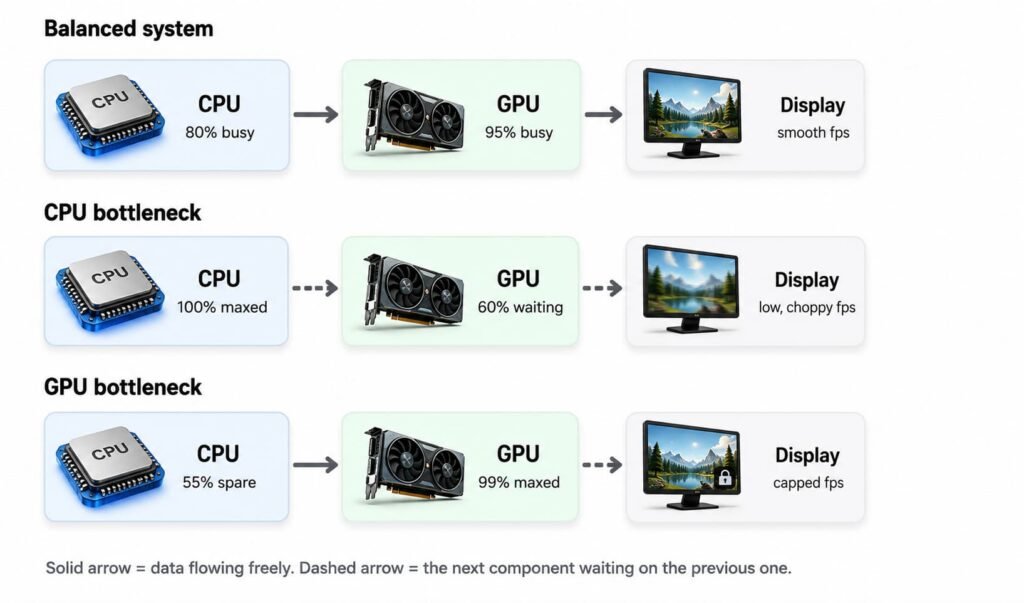
In a balanced system, the CPU stays busy without maxing out, and the GPU is doing almost all the work it can. Data keeps moving, and frame rate stays smooth.
In a CPU bottleneck, the CPU is pinned at 100% while the GPU sits underused, waiting on data it hasn’t received yet.
A GPU bottleneck flips this around. The CPU has spare capacity, but the graphics card itself is maxed out rendering the frame. This is actually the more common state at higher resolutions, and nothing to be alarmed by.
The pattern worth remembering: whichever component is pinned near 100% while the other has room to spare is the one holding your system back.
Common Signs You Have a CPU Bottleneck
Good news: you don’t need special software for this. Just Task Manager and a game you can run for a minute or two.
- Open Task Manager (Ctrl + Shift + Esc) while the game is running
- Check CPU usage. 90–100% is your first red flag
- Check GPU usage at the same time. If it’s sitting at 50–70% while the CPU is maxed, the CPU is the one holding things back
- Watch what happens in busy scenes: explosions, crowded areas, big open-world zones. This is where a CPU bottleneck shows up hardest
The rule of thumb: in a healthy, balanced system, your GPU should run close to 95–99% usage during gameplay. If it’s noticeably lower while the CPU sits pinned at 100%, that gap is your bottleneck. Treat these as general indicators, not exact thresholds. The precise numbers shift depending on your game, settings, and specific hardware.
A couple of other tells are worth knowing too:
- Low FPS that doesn’t budge when you turn every setting down to low. If the GPU was never your limit, lowering graphics settings won’t help.
- Inconsistent frame times, even when average FPS looks fine. A game can report “60 FPS average” and still feel stuttery, because that average hides the moments where the CPU briefly couldn’t keep pace.
One thing worth ruling out before you pin it all on the CPU: thermal throttling produces the exact same numbers on screen. If temperatures are running hot, check that first.
CPU Bottleneck vs. GPU Bottleneck: Comparison Table
Real pairings make this easier to picture than percentages alone. Here’s how a few common CPU and GPU combinations typically play out, and why resolution changes the answer every time.
| CPU | GPU | Resolution | Likely Result | Why |
|---|---|---|---|---|
| Ryzen 5 3600 | RTX 4090 | 1080p | CPU bottleneck (~30%) | GPU renders frames faster than the CPU can prepare them |
| Ryzen 5 3600 | RTX 4090 | 4K | Minor to no bottleneck | GPU’s workload per frame increases, giving the CPU more time |
| Intel i9-13900K | GTX 1060 | Any resolution | GPU bottleneck (~20%) | GPU is the limiting factor regardless of CPU power |
| Ryzen 7 5800X | RTX 3070 | 1440p | Well balanced | Neither component is consistently maxed out |
| Pentium G5400 | RTX 3070 | 1080p | CPU bottleneck (~40%+) | CPU generation gap is too wide for the GPU tier |
Treat these as a starting point, not a guarantee. Actual numbers shift with the specific game, settings, and background load. The takeaway holds across every row: pairing components from very different performance tiers creates a bottleneck somewhere, and which direction it leans depends as much on resolution as on the parts themselves.
Benchmark Insights: 6-Core vs. 8-Core CPU Performance
Numbers make the core-count debate a lot less abstract. Here’s roughly how a 6-core and an 8-core CPU compare across a few common workloads, at 1080p, where the CPU’s role is easiest to see.
| Workload | 6-core | 8-core | Gap |
|---|---|---|---|
| Open-world game (e.g. Cyberpunk 2077) | ~70 FPS | ~85 FPS | +15 FPS |
| Large-scale multiplayer (e.g. Call of Duty: Modern Warfare III) | ~110 FPS | ~123 FPS | +13 FPS |
| Video render (Adobe Premiere) | ~180 sec | ~142 sec | ~38 sec faster |
| Open-world RPG (Red Dead Redemption 2) | ~80 FPS | ~95 FPS | +15 FPS |
Numbers make the core-count debate a lot less abstract. Here’s roughly how a 6-core and an 8-core CPU compare across a few common workloads, at 1080p, where the CPU’s role is easiest to see.Treat these as representative estimates based on common benchmark trends across modern games and productivity workloads.
Actual performance depends on factors such as CPU generation, graphics settings, memory speed, game updates, and background applications. In general, open-world games and content creation tasks benefit the most from additional cores, while many esports and lighter titles continue to perform well on modern 6-core processors.
How Much Bottleneck Is Too Much?
Here’s what most people get wrong: every system has some bottleneck. Perfect balance doesn’t exist. One component always leads slightly while the other follows, and that’s normal, not a failure.
| Bottleneck level | Impact | Action needed? |
|---|---|---|
| Under 10% | Barely noticeable | No |
| 10–20% | Minor FPS loss | Optional tweaks |
| 20–35% | Noticeable stutters | Worth addressing |
| Over 35% | Serious performance loss | Time to upgrade the CPU |
This is more common than people realize, too. Steam’s own hardware survey data shows 6-core CPUs recently fell below 30% market share for the first time, while 8-core adoption keeps climbing. That’s a sign a large share of gamers are running CPUs one or two tiers behind the GPUs they’ve paired them with.
This is usually where beginners and experienced builders part ways. Someone new to PC building tends to see any bottleneck as a problem to fix immediately: spot a 12% gap, start shopping for a new CPU that night.
Someone who’s built a few rigs shrugs at anything under 15–20% and only pays attention once it actually affects how the game feels to play. Honestly, the experienced approach is the right one here. Chasing a perfectly even 0% bottleneck is chasing something that doesn’t exist.
Can You Fix It Without Buying a New CPU?
Sometimes, yes. Here’s what actually moves the needle:
- Raise your resolution Going from 1080p to 1440p shifts more of the workload onto the GPU per frame, easing the pressure on the CPU.
- Cap your frame rate Lock it to 60, or to your monitor’s refresh rate. There’s no benefit to your CPU straining for 200 frames a second if nothing on screen can use them.
- Close background apps OBS, browser tabs, Discord overlays: all of it competes with your game for the same CPU cycles.
- Turn on frame generation, not just upscaling This is where people get it wrong. Standard DLSS or FSR upscaling reduces GPU load, not CPU load, so it does very little for a genuine CPU bottleneck. DLSS 3/4 frame generation is different: it inserts extra frames the CPU doesn’t have to fully prepare from scratch. It’s quietly becoming one of the more realistic ways to soften a CPU bottleneck without touching your hardware at all.
- Overclock your CPU A 10–15% clock speed bump can close a small gap. It won’t rescue a genuinely outdated chip, but it helps at the margins.
- Upgrade your RAM speed This matters more than people expect, especially on Ryzen. Going from DDR4-2400 to DDR4-3600 can lift FPS by roughly 10–15% in CPU-bound games.
There’s a limit to what software tweaks can achieve. If your CPU is three or four generations behind a current-generation GPU, none of these optimizations will completely eliminate the bottleneck. At that point, upgrading your processor is the only long-term solution.
A Quick Real-World Example
Here’s a scenario that plays out constantly in budget-to-mid-range builds.
Take a Ryzen 5 3600 paired with an RTX 4070 at 1080p, a common upgrade path for many PC gamers. In CPU-intensive games, this combination can experience a noticeable CPU bottleneck, although the exact percentage varies depending on the game, graphics settings, background workloads, and driver versions.
Apply a few of the fixes from above: bump the resolution to 1440p, close background apps, update chipset drivers, turn on frame generation where supported. That same setup usually narrows to a 10–15% gap. Still there, technically, but no longer something you’d notice mid-game.
Same hardware, better balance. That’s usually all it takes.
What PC Hardware Forums Actually Say
Spend time in long-running PC hardware communities, and the tone is noticeably calmer than most bottleneck-anxiety articles suggest.
One thing experienced builders consistently point out: a bottleneck doesn’t damage anything. It’s a value question more than a hardware fault. The real issue usually isn’t that your performance is “ruined.” It’s that you might be paying for GPU power your CPU won’t let you use.
There’s also a more philosophical point that keeps coming up: every PC has bottlenecks somewhere, whether between CPU and GPU, RAM and cache, or storage and everything else. The practical question was never “do I have one,” but whether the size of the gap is worth the cost of fixing it.
The Bottom Line
A CPU bottleneck is your processor waving a white flag while your GPU sits there with power it can’t use. It’s a mismatch, not damage, and mismatches can be fixed, whether that’s a few settings tweaks or an eventual upgrade.
If your CPU is pinned at 100% while your GPU coasts well below it, that’s the part of your system actually holding you back, not the graphics card you spent the most on. Check it first. That’s usually where the real problem is hiding.
One Comment
Comments are closed.